Integrating Energy Monitoring Devices (e.g. Smart Meters)
Overview
Purpose
This document provides a standard procedure to guide you in integrating energy consumption devices (water meters, electricity meters) using communication protocols such as Modbus and LoRaWAN into the Neuron platform. Upon completion, you can achieve automatic collection, real-time monitoring, and statistical analysis of energy consumption data within the platform, supporting energy cost optimization and carbon emission management.
Target Audience
- Field Installation Engineers: Responsible for the technical integration of energy consumption devices like water and electricity meters with the platform.
- Property Operation and Maintenance Teams: Responsible for daily system monitoring, alarm response, and basic maintenance.
- Energy Management Managers / Facility Operation Leads: Responsible for overall energy efficiency improvement, cost analysis, and optimization decisions.
Scope and Use Case
Configuration of smart electricity meters (e.g., LoRaWAN electricity meters) for a building, including gateway deployment (DTU configuration), data access, monitoring dashboard creation, and device anomaly alerts.。
Prerequisites
-
Site Implementation Readiness: On-site installation, wiring, power-up, and network debugging of devices such as electricity meters, current transformers (CTs), and DTU gateways have been completed by professionals. The devices can stably send data to the designated network server (e.g., MQTT Server). After the devices go online, verify that the local display readings of the meters completely match the data received by the cloud platform.
❗Important Reminder: On-site installation involves electrical safety and professional standards. It must be performed by qualified electromechanical engineering personnel. The above is only a process overview and does not substitute for professional guidance.
-
Platform Permissions: You need to have project administrator permissions and visibility permissions for the applications mentioned below. Please contact your system administrator or project lead to confirm your account permission scope.
-
Platform Configuration:
- Project already created in Neuron: Device integration, energy data management, monitoring dashboard creation, and device anomaly alert configuration all need to be completed within the project.
- Location structure (building, floor, room, etc.) for the project already configured: If physical location association is needed during device integration, configure the location information in the project in advance.
- Necessary application modules already installed: Such as Energy Management, Building Insight & FDD, IoT Hub, Twins Builder etc.
System Data Flow
The diagram below illustrates the complete data flow and key configuration points for integrating an energy consumption device (LoRaWAN electricity meter) into the Neuron platform:

Implementation Guide
Phase 1: Integrating Energy Consumption Devices into the Neuron Data Platform
1. Confirm Access Method and Complete Device Network Joining and Decoding
- Expected Outcome: Once the smart electricity meter successfully completes network access authentication and data decoding on your chosen platform such as ChirpStack, Netmore, NodeRED (kalfa), or your self-built MQTT Server (depending on your deployment environment), you can view the device's online status and the decoded raw data in the console of the corresponding platform.
- Documentation Link:
- LoRaWAN Devices (ChirpStack): If your devices are planned to access via a self-built or Neuron-provided ChirpStack network server. 【ChirpStack Pre-configuration Guide】. If using Milesight devices, you may refer to the【UG56 Gateway Configuration Guide】 / 【ADW300 Configuration Guide via ChirpStack】 / 【ADW300 Configuration Guide via Milesight Platform】。
- LoRaWAN Devices (Netmore): If your devices access via the Netmore operator network. 【Netmore Pre-configuration Guide】.
- Data Stream Integration (Node-RED): If you need to forward existing device data from message queues like Kafka to this platform using a low-code approach. 【Kafka Pre-configuration Guide】.
- Self-built MQTT Server: If none of the above three options meet your device access plan, you can refer to the [Self-built MQTT Server Access Guide].
2. Integrate the Device into the Neuron Data Platform Based on the Chosen Access Method
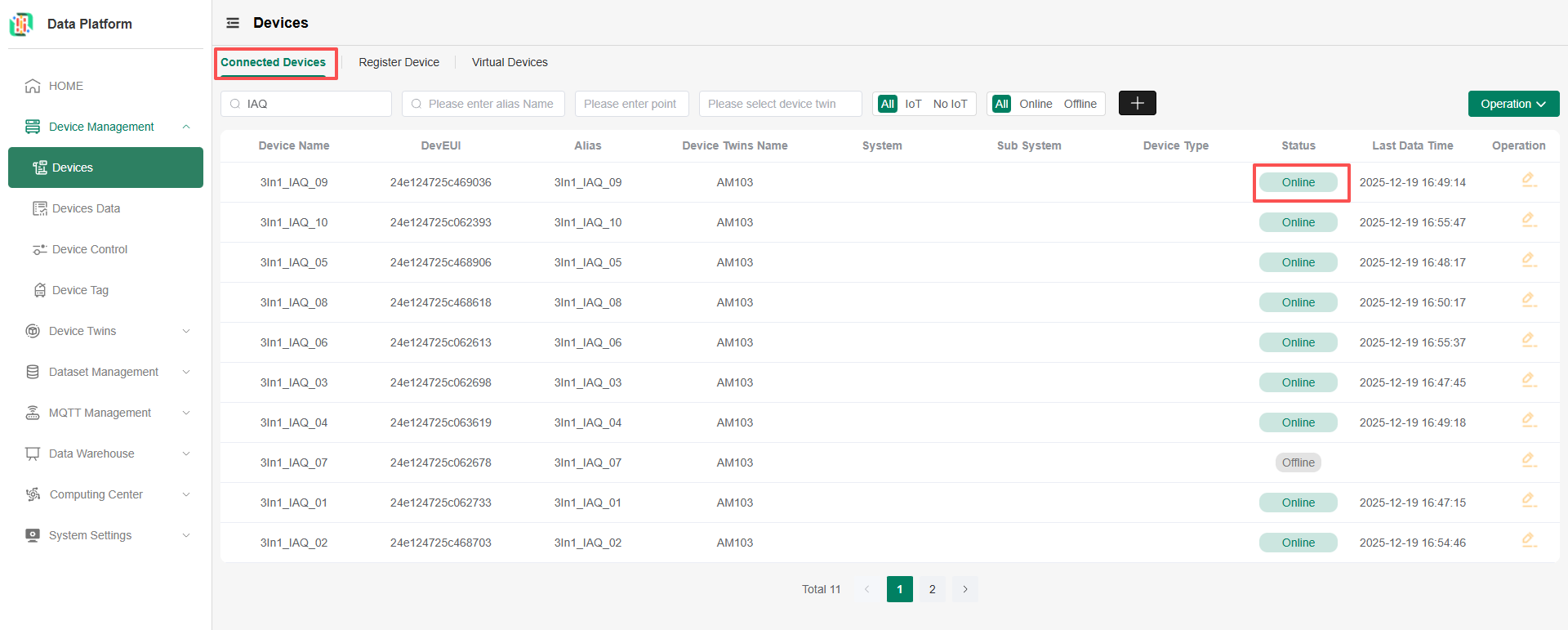
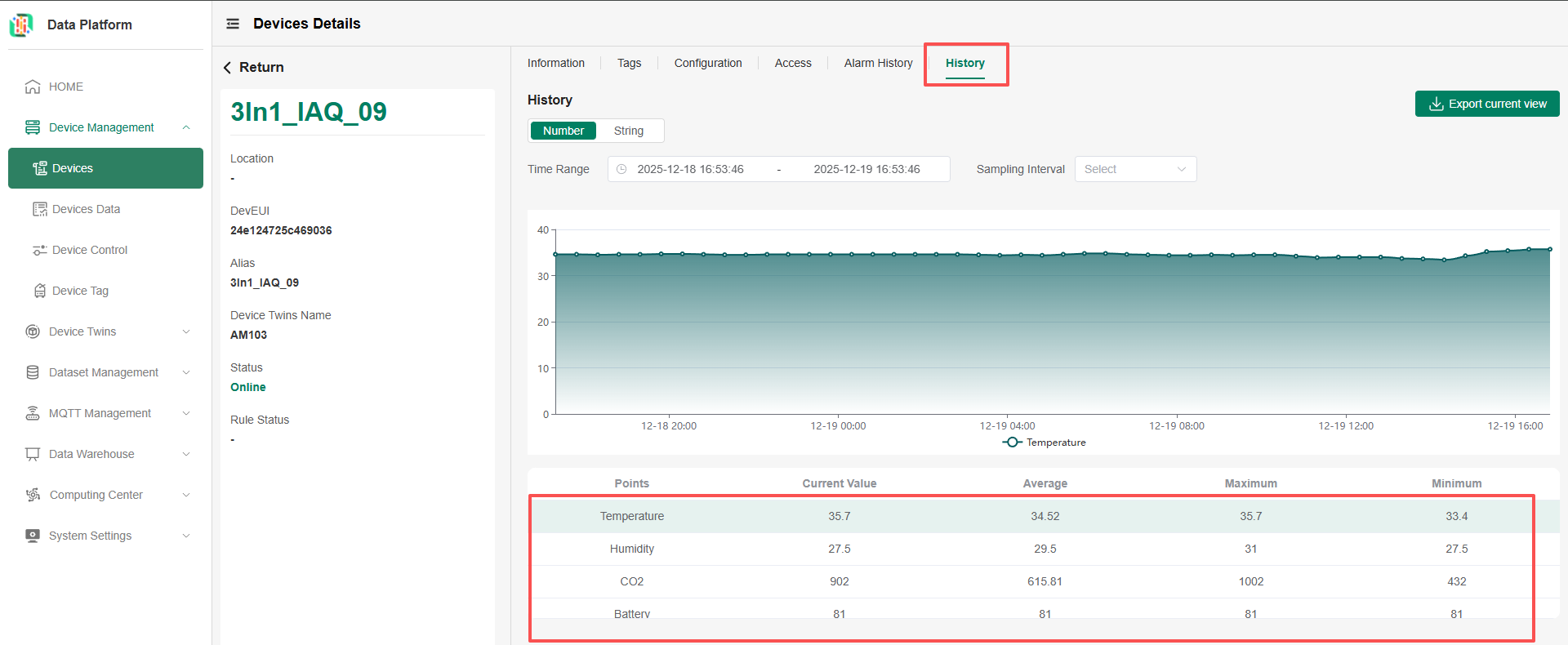
- Expected Outcome: After successfully adding a device via Data Platform → Device Management → Add Device and configuring it correctly according to the tutorial, once the device data is reported to the platform, it will appear in the Device List with a status of "Online". You can then view real-time device data (e.g., voltage, current, power, electricity consumption) on the device details page.
- Documentation Link: Device Access / Device List
- Troubleshooting:
- The device fails to connect or shows an "Offline" status in the Neuron Data Platform.
- Case 1: The device is not reporting data normally to the decoding platform.
- Cause: Communication failure between the device and the gateway, or the device failed to join the network successfully.
- Operation: Check the device signal strength, confirm the gateway is online, and verify the device activation status and uplink logs in the network server. For details, please refer to the device manual.
- Case 2: The device is physically operating normally, and data can be confirmed as normally reported in the decoding platform, but the Neuron platform fails to receive, parse, or process the data stream forwarded from the network server.
- Cause A: There is a delay in data forwarding from the network server to the platform, or the platform's data processing pipeline has not yet completed cleaning, parsing, and storing the data for this device.
- Operation A: Wait for a period of time and refresh the device list; confirm in the network server console that data has been forwarded to the correct endpoint.
- Cause B: Incorrect communication link or data parsing configuration on the platform side.
tipYour device will send data through an MQTT Server. The Neuron Data Platform will subscribe to device data based on the MQTT Server and Topic you configure. Therefore, you need to first correctly configure the MQTT Server and Topic you are using. The Payload in the Topic must contain real-time data for each point of the device. Please ensure that the point names (name) in the Payload match the Function Type names in the Neuron platform's Device Twins (case-insensitive); otherwise, the platform will not recognize the corresponding data.
- Operation B:
- Check the communication link: Go to [Data Platform → MQTT Management], verify the Broker address, port, and SSL/TLS certificate configuration to ensure they are completely consistent with the forwarding settings of the network server (e.g., Netmore/ChirpStack). For detailed operations, please refer to the relevant guide.
- Verify data routing: In [Data Platform → MQTT Management → Topic], confirm that the Topic subscribed by the platform (e.g.,
client/your-client-id/#) exactly matches the forwarding Topic configured in the network server. - Validate data parsing: Check the parsing rules in the [Data Platform → System Settings → ETL Converter] or the thing model to ensure they can correctly parse the Payload format reported by the device.
- Verify the Device Twins configuration: Navigate to 【Data Platform → Device Twins】 and confirm that the correct Device Twins has been created for this device type, and that the function points (such as temperature, humidity) in the Device Twins match the field names in the data reported by the device.
- Case 1: The device is not reporting data normally to the decoding platform.
- The device fails to connect or shows an "Offline" status in the Neuron Data Platform.
Glossary:
1. MQTT: A lightweight Internet of Things (IoT) communication protocol based on the publish-subscribe pattern, suitable for IoT device data transmission in low-bandwidth, high-latency scenarios.
2. Topic: In the MQTT protocol, a Topic is a UTF-8 string used for addressing and filtering messages. It acts as a virtual message channel between the message publisher and subscriber, serving as the core mechanism for message routing.
3. ETL Converter: A core component in the data center that transforms the diverse, non-standard data formats reported by devices into a standardized data format that the platform can uniformly recognize and process.
4. Device Twins: In the Neuron platform, a collection of devices that share the same capabilities or characteristics is referred to as a Device Twin. For example: Indoor Environmental Monitoring Sensor -> can define a Device Twin as IAQ, with Function types (data points) including Temperature / Humidity.
Phase 2: Energy Consumption Monitoring and Carbon Accounting Configuration
This phase utilizes the Energy Management application for building energy consumption monitoring, statistics, analysis, and carbon accounting.
1. Device Consumption Configuration
Enable Calculatied values and configure Usage rules for the device in the data platform. The system will automatically generate precise period-based consumption and carbon emission analysis data.
- Expected Outcome: See the devices that need to participate in calculations in the device list under Data Collection in the Energy application.
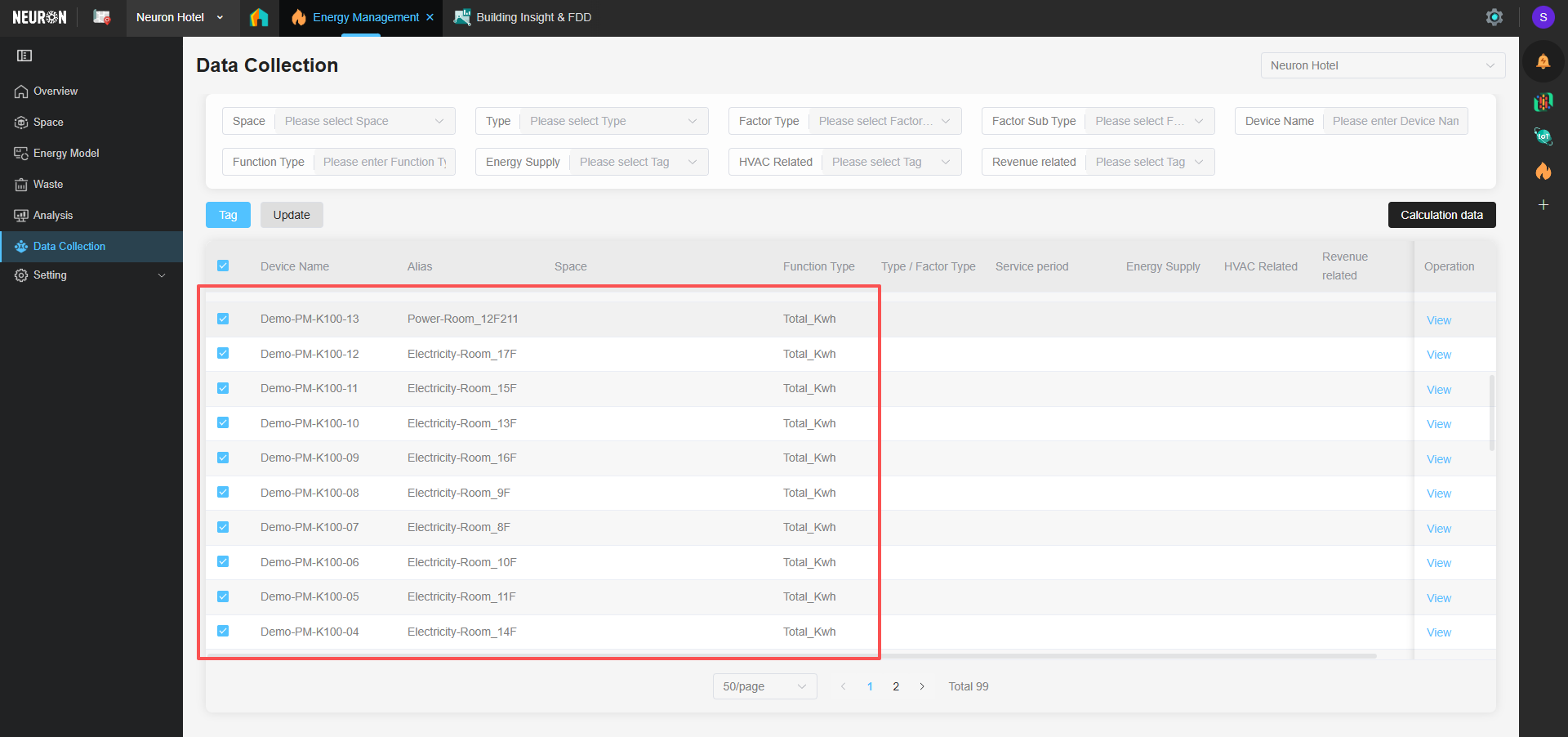
- Documentation Link: Energy Device Consumption Configuration
2. Configure Analysis Space (Space)
Define logical units requiring independent energy consumption accounting (e.g., "Building A, 10th Floor" or "R&D Office Area"). Then, assign spatial tags to devices to associate physical meters (electricity, water) with corresponding spaces. This mapping is the foundation for the platform to aggregate, statistically analyze energy consumption data by category and area, generate reports, and locate efficiency issues, ensuring accurate energy calculation, reporting, and problem identification by space.
- Expected Outcome: Navigate to Energy -> Space Management. The required Spaces for analysis have been created, and you can select whether a Space participates in the project's total data calculation.

- Documentation Link:Configure Analysis Space
3. Manage Device Data Items
Only when relevant items are enabled will device data participate in calculations and data display.
- Expected Outcome: Navigate to Energy -> Item Management. The relevant items for device data are turned on, and the correct data entry method (Manual entry/API entry/Both) is selected.
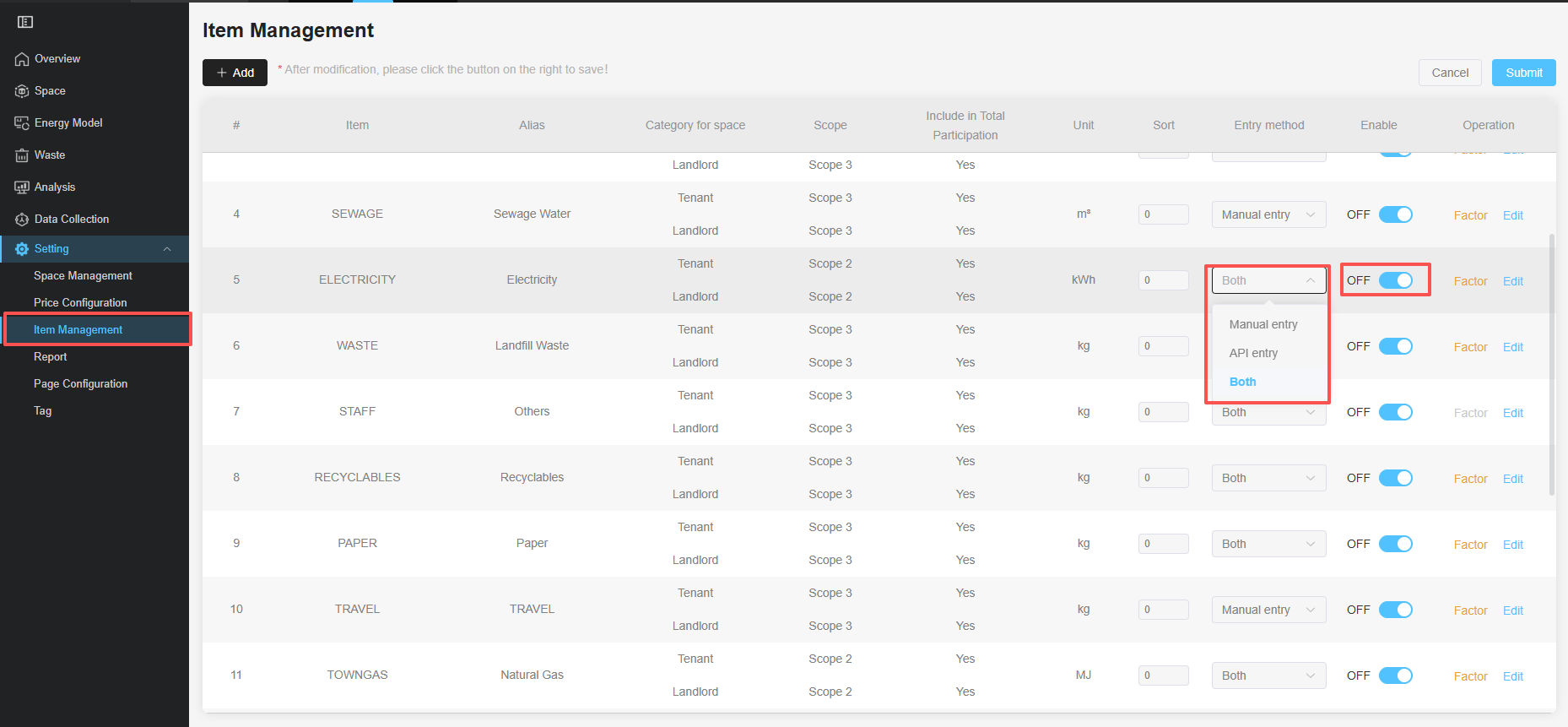
- 文档链接:Manage Device Data Items
4. Configure Device Energy Consumption Calculation Tags
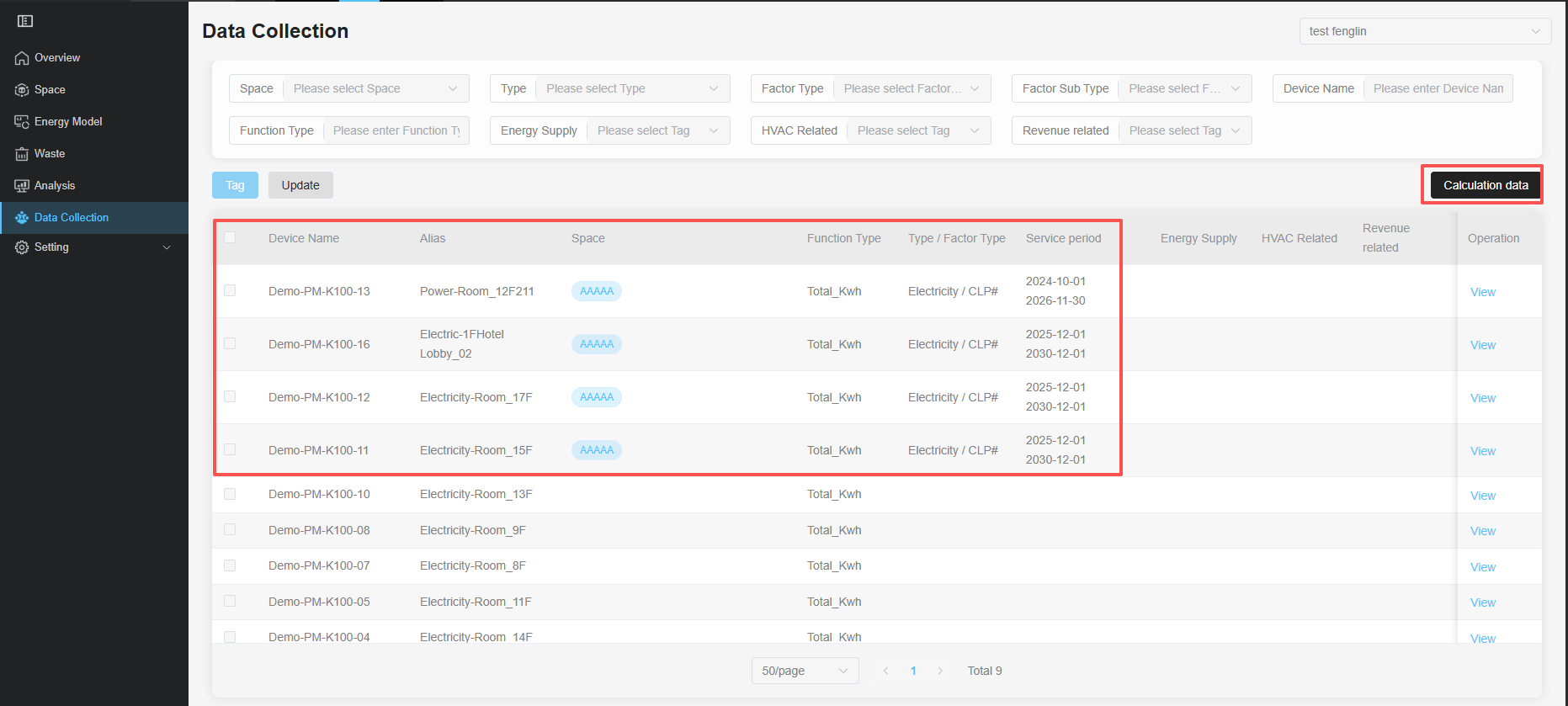
- Expected Outcome: Navigate to Energy -> Data Collection. Bind tags such as space, service period, and type to device data. After completion, click the "Calculate Data" button to generate categorized energy consumption statistics.
- Troubleshooting:
- No devices in the device list.
- Scenario One: Device data not synchronized.
- Cause: Data from newly integrated devices has not yet synchronized to the Energy application.
- Action: Go to Energy -> Data Collection, click the "Update" button to manually trigger device synchronization.

- Scenario Two: Device consumption tags not configured.
- Cause: The integrated energy consumption device has not completed the basic configuration for secondary consumption calculation.
- Action: Go to the data platform and complete allconsumption calculation configurationsfor this device.
- Scenario One: Device data not synchronized.
- No devices in the device list.
- Documentation Link: Configure Device Energy Consumption Calculation Tags
5. Manual Data Entry
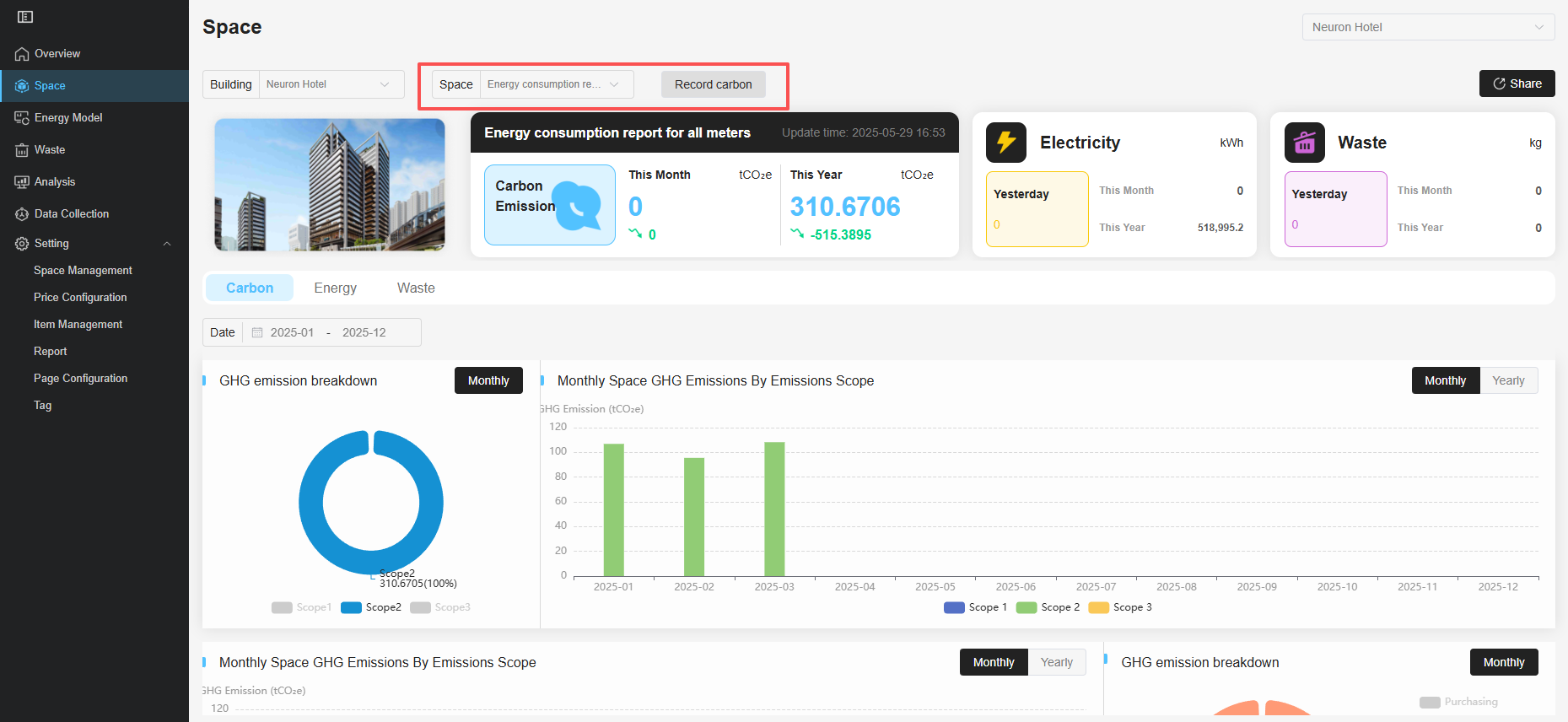
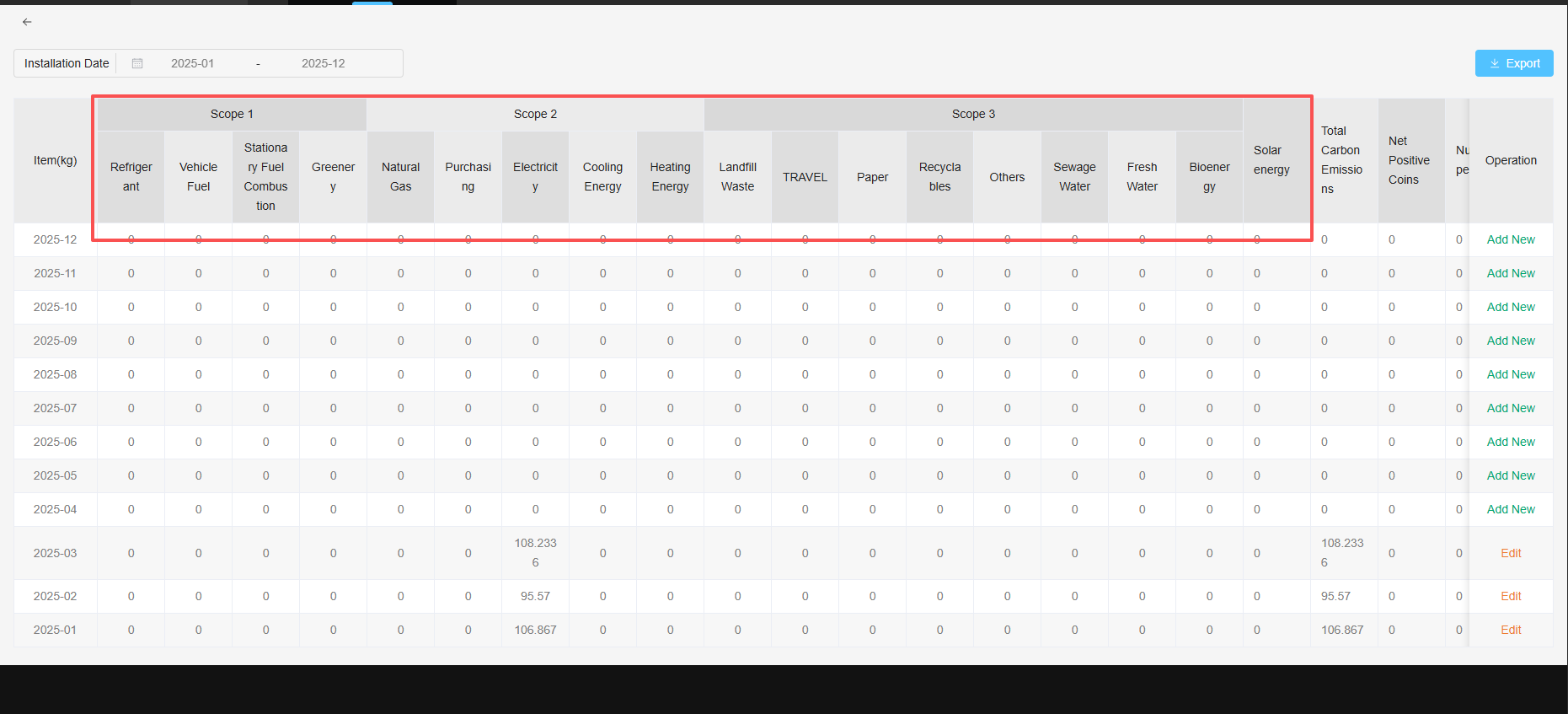
The manual entry function provides a crucial tool for supplementing and correcting energy and carbon data, ensuring the comprehensiveness and accuracy of analysis. When automatically collected data is incomplete, you can manually supplement records through Space Data Entry and Waste Management.
-
Expected Outcome: Enter the Energy application, select the corresponding Space to view related energy consumption data records, and be able to complete manual entry of data (e.g., electricity consumption, carbon emissions).
-
Documentation Link: Manual Data Entry
6. View and Analyze Energy Consumption Data
After completing the basic configuration and collection of energy data, you can view, analyze, and generate reports on energy consumption data in various ways to gain insights into energy efficiency status and support management decisions.
6.1 Energy Dashboard Overview
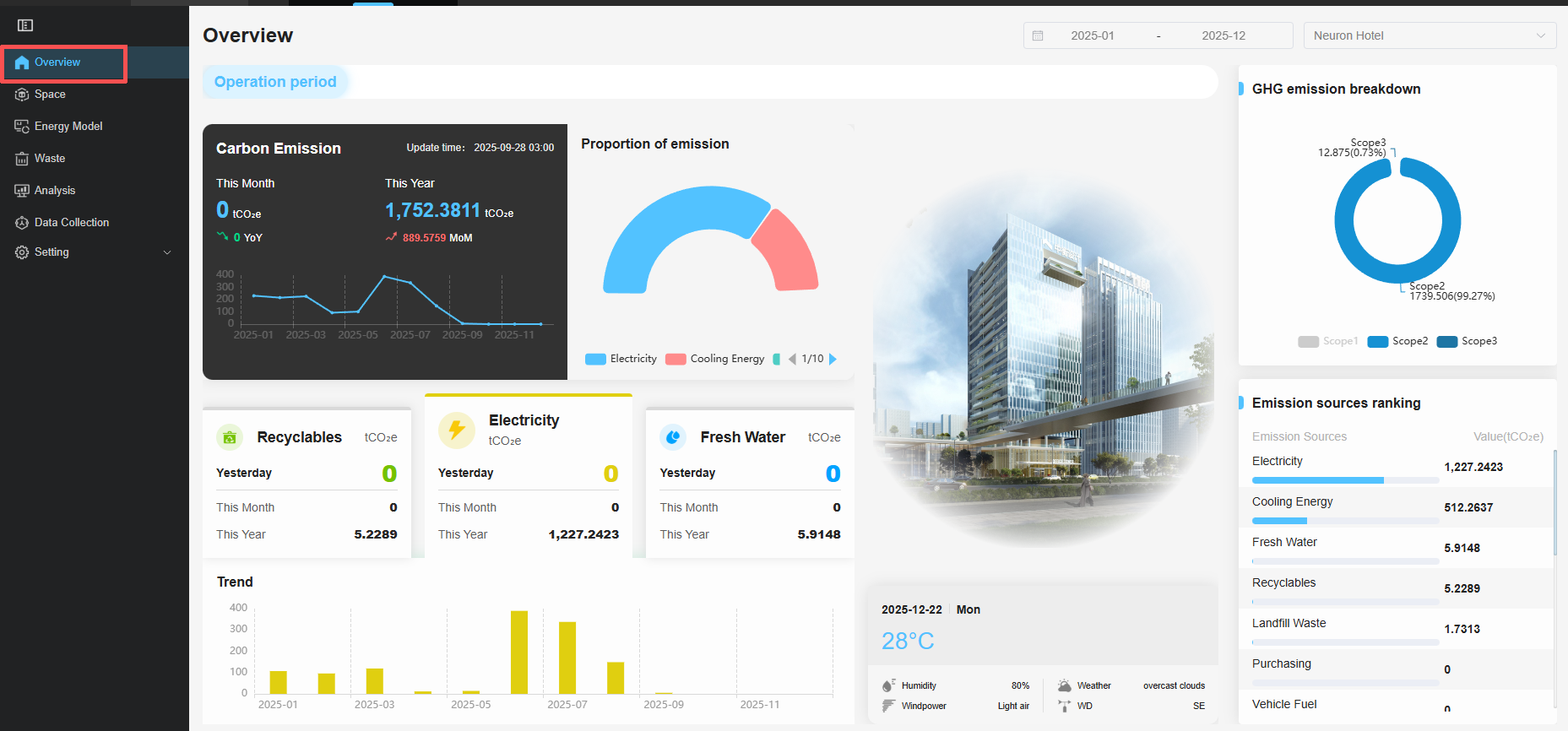
- Expected Outcome: Navigate to Energy -> Overview. You can centrally view real-time data from all energy consumption devices, key performance indicator (KPI) cards, and historical energy usage trend overviews by day, month, and year.
- Documentation Link: Energy Dashboard
6.2 Build Energy Consumption Model
- Expected Outcome: Navigate to Energy -> Energy Model. You can clearly see the tree structure of energy consumption and, by selecting different levels, view the corresponding data summary on the right-side panel.
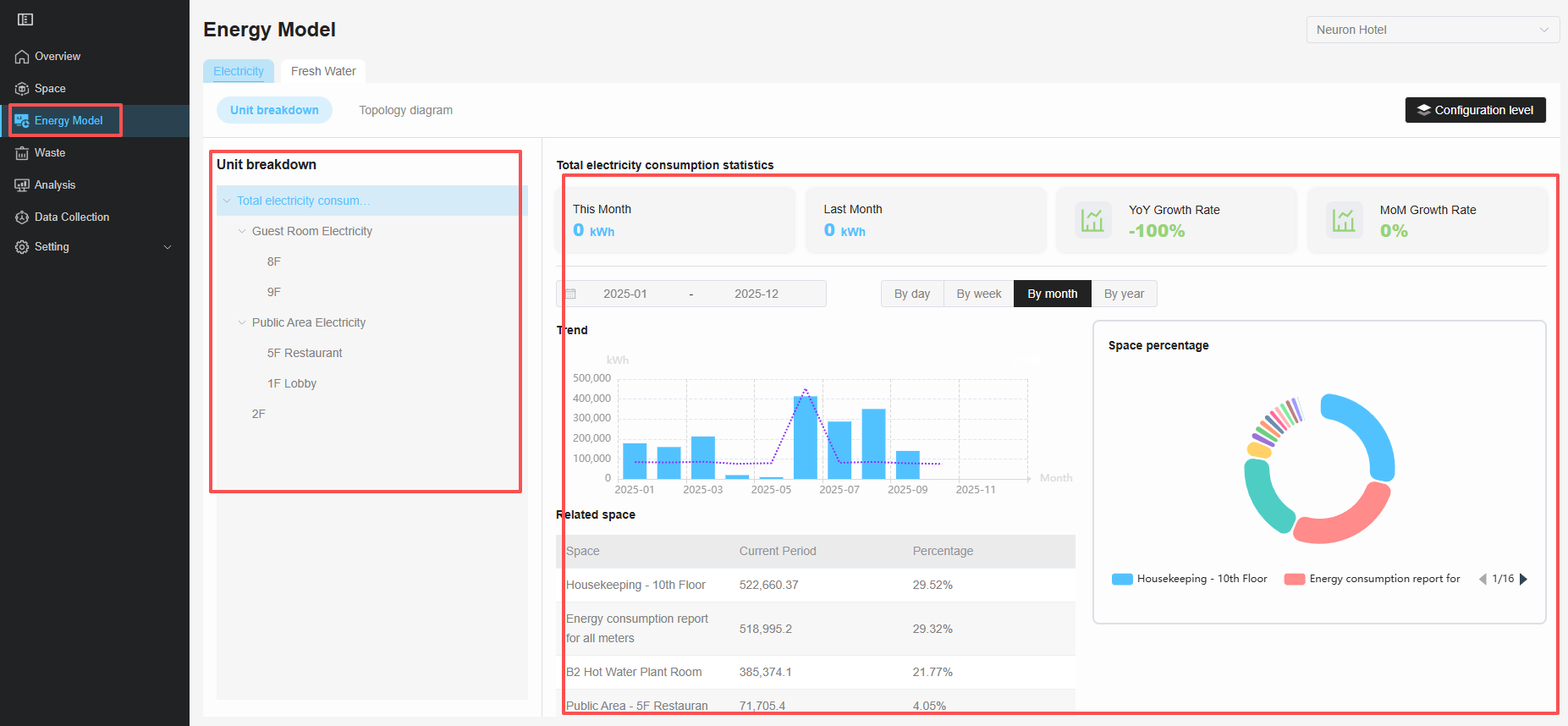
- Documentation Link:Energy Consumption Model
6.3 Create Custom Analysis Items
- Expected Outcome: Navigate to Energy -> Analysis. You can create and edit different analysis items, combine and compare data from multiple Spaces, and set benchmark values for in-depth evaluation.

- Documentation Link:Data Analysis
6.4 Export Reports
-
Expected Outcome: In the Energy application, configure and generate structured reports containing multiple spaces, data types, and time spans via Setting > Report.
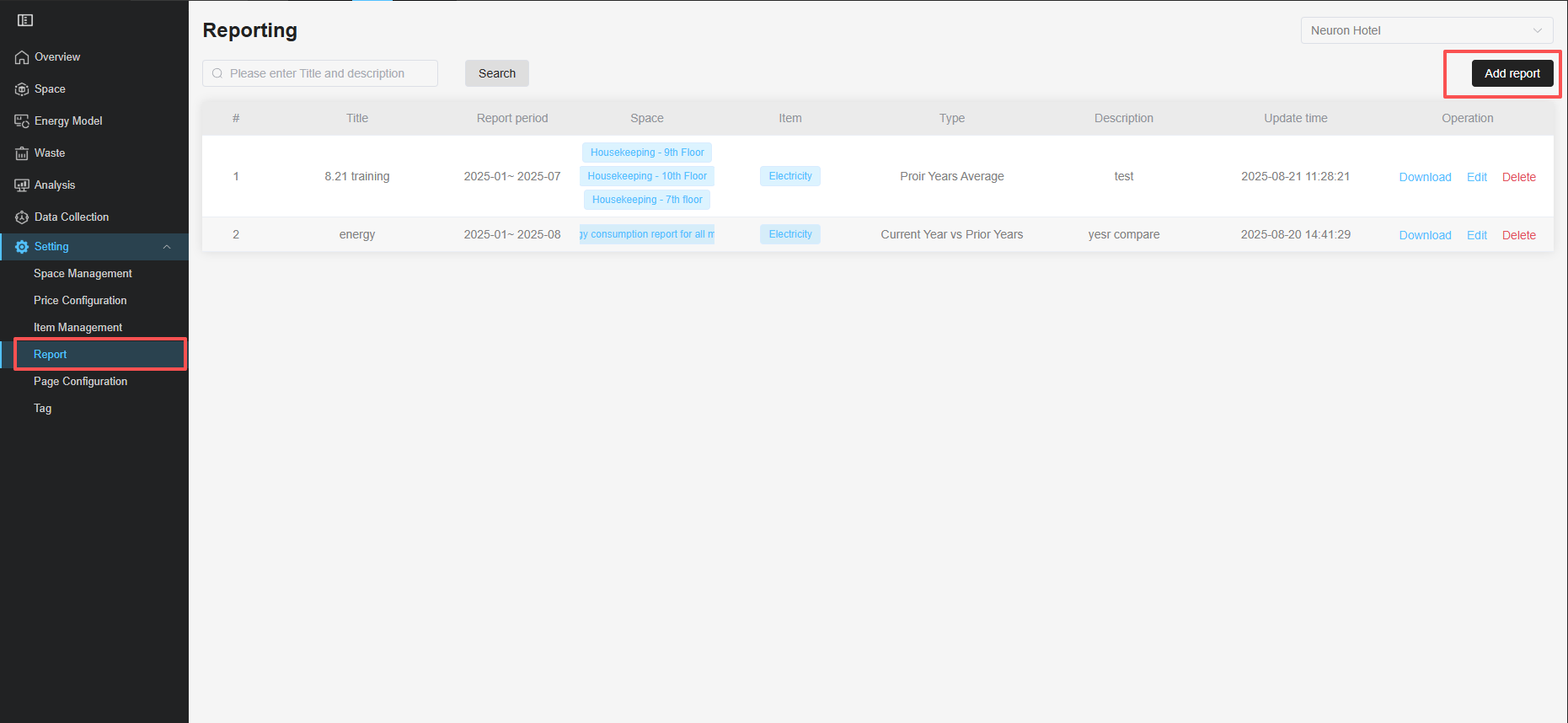
-
Documentation Link:Report Generation
-
Troubleshooting:
- No data or abnormal data in the Energy Consumption Model or Analysis pages.
-
Cause One: Devices not configured withenergy consumption calculation tags。
-
Action: Bind tags including space, service period, and type to the device. After binding, click "Calculate Data" to refresh the data.
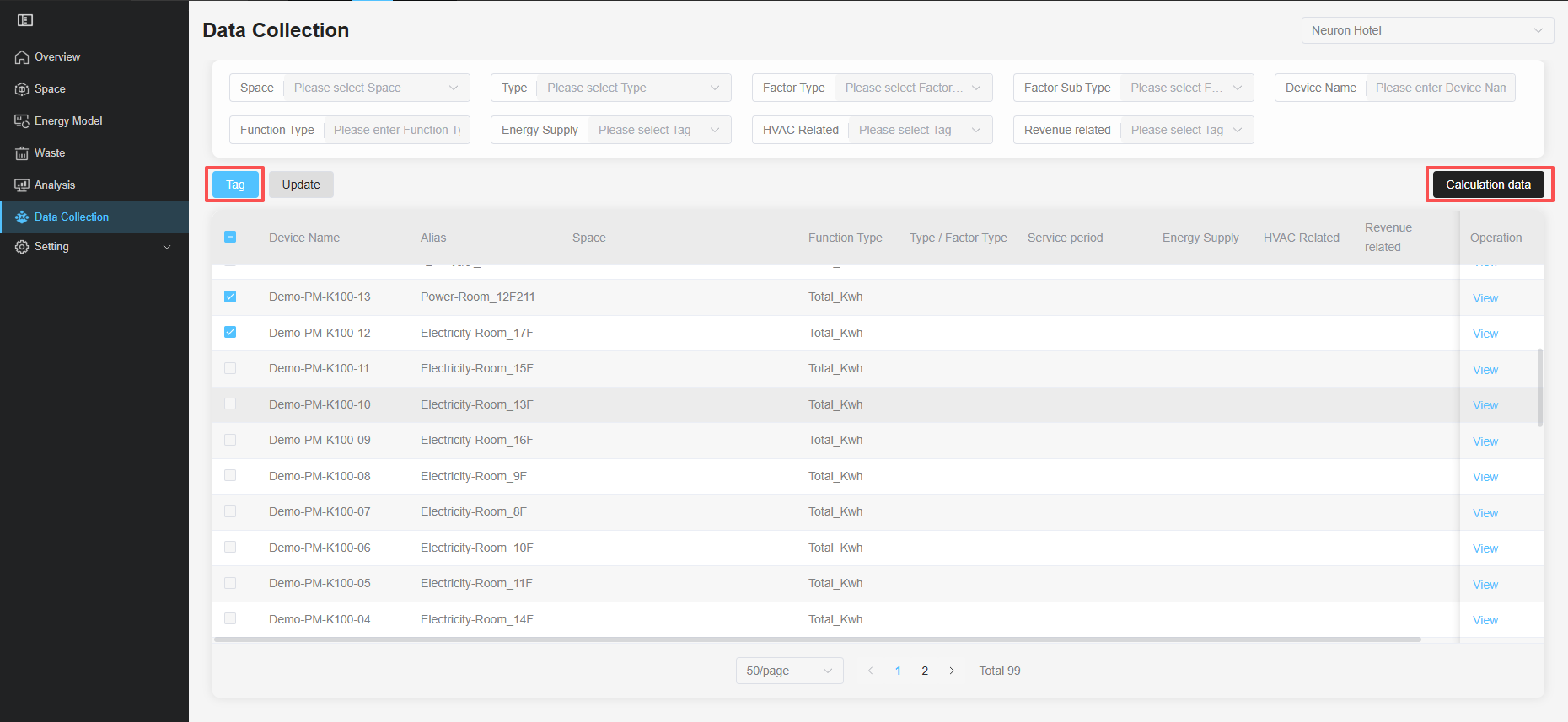
-
Cause Two: Space not enabled for participation in calculation Action: Turn on the toggle for the space to participate in calculation.
-
- No data or abnormal data in the Energy Consumption Model or Analysis pages.
Phase 3: Configure Device Anomaly Alerts
1. Configure Rules in the Rule Engine
- Expected Outcome: Enter the Building Insight & FDD application. Create a rule (e.g., "Offline Alert for a Specific Electricity Meter"). When the device fails to report data for a certain period, the system can automatically trigger notifications (e.g., send platform notifications/emails).
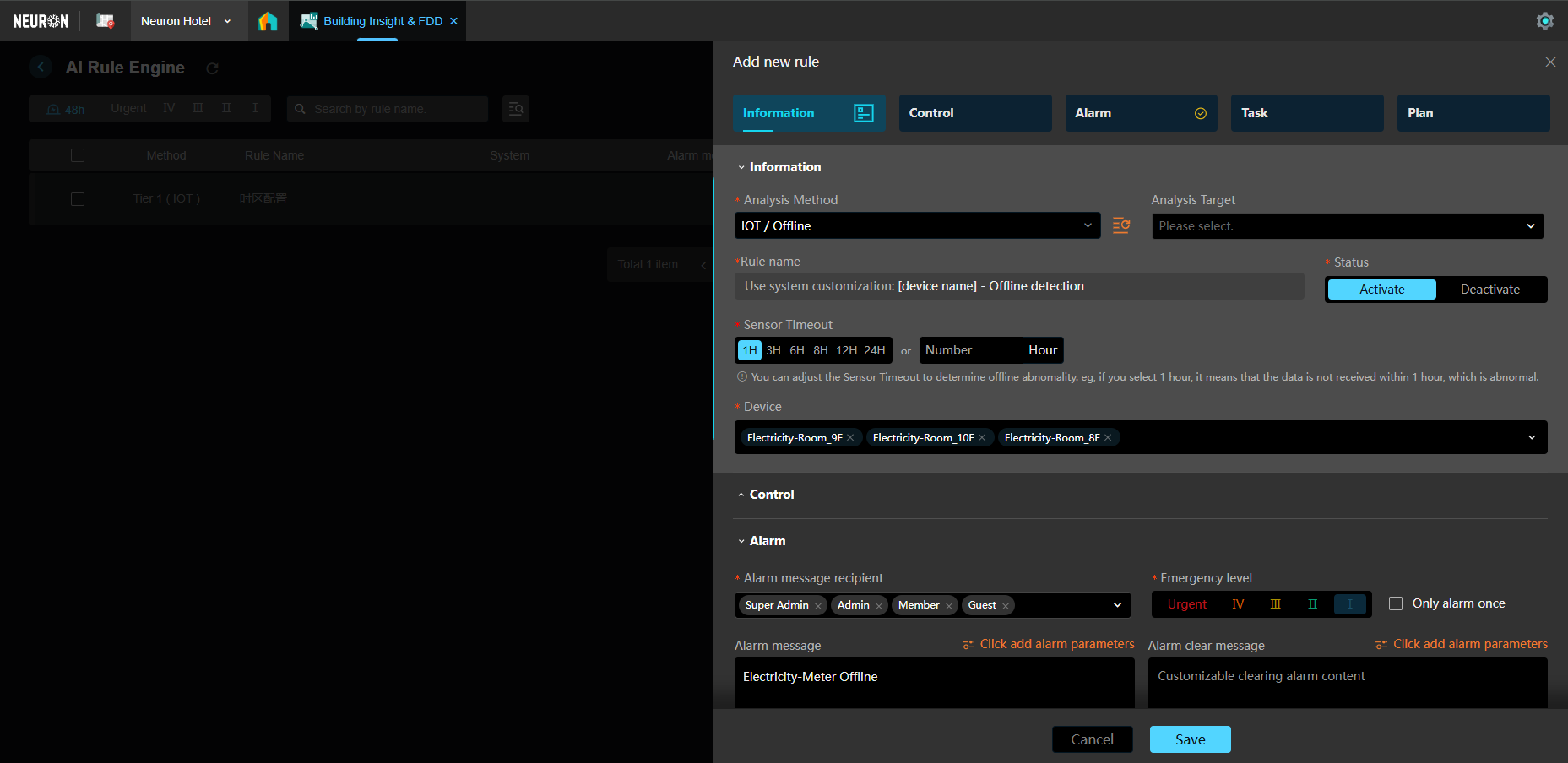
- Troubleshooting:
- Devices not visible in the Rule Engine.
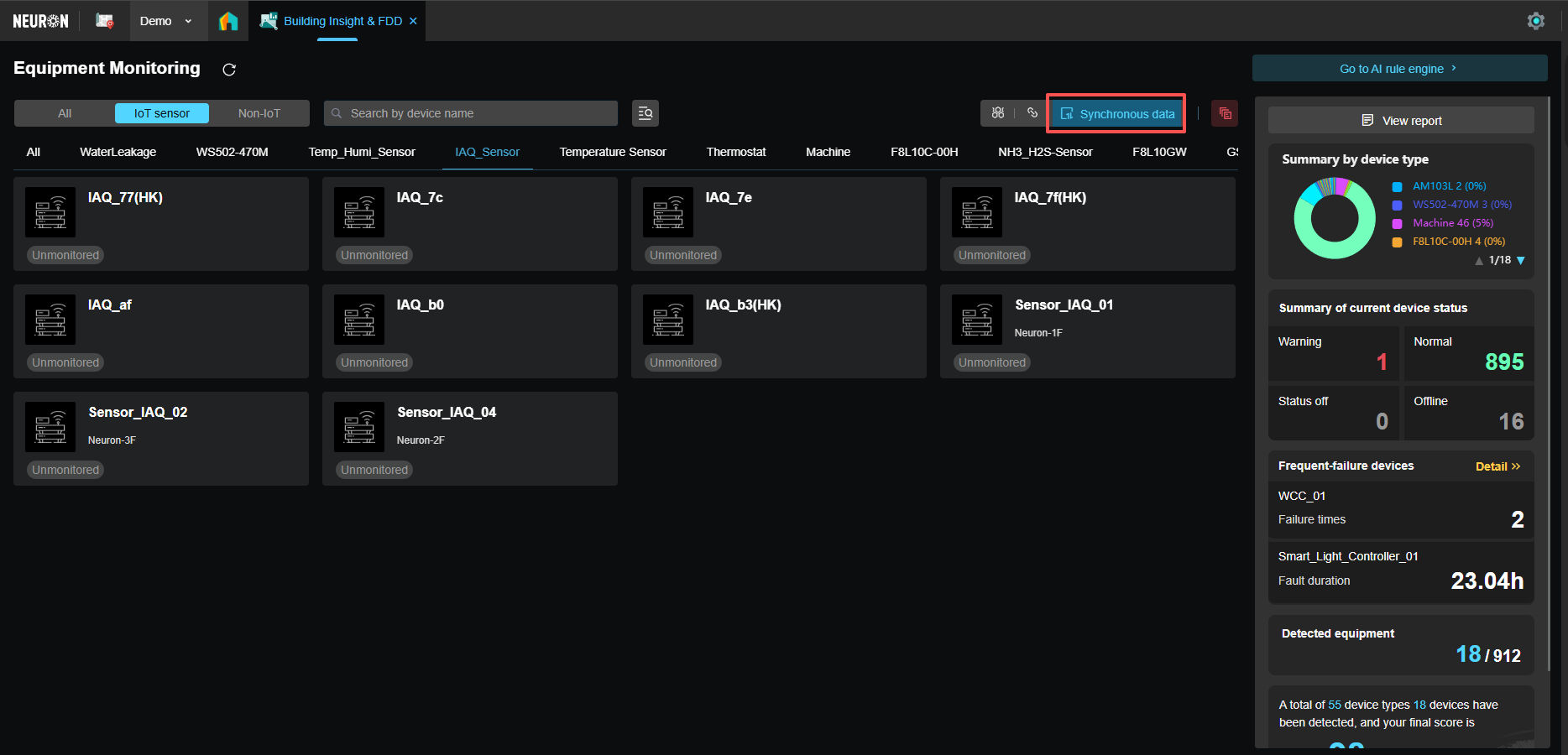
- Cause: For newly configured devices, data synchronization has not yet completed in the rule engine.
- Action: Enter Building Insight & FDD, click the "Sync Data" button to manually trigger device data synchronization.
- Devices not visible in the Rule Engine.
- Documentation Link: Rule Engine
Phase 4: Create Data Monitoring Dashboards
If you need to customize data display views, you can create dedicated monitoring dashboards through the IoT Hub application to achieve data visualization, real-time alerts, and centralized device status monitoring.
1. Create a Workspace
- Expected Outcome: Enter IoT Hub and create a new workspace (e.g., "XX Building Energy Consumption Monitoring Dashboard") for centrally displaying energy consumption device data for specific areas or business units.
- Documentation Link: IoT Hub Workspace Management
2. Configure Data Dashboard
- Expected Outcome: Add chart components (e.g., line charts, gauges, value cards); bind device data points (e.g., voltage, current, power, electricity consumption). You can intuitively see real-time data curves or statuses of various energy consumption devices through the charts.

- Troubleshooting:
- Device successfully integrated and reporting data in the data platform, but cannot be viewed in IoT Hub.
- Scenario One: Device not synchronized to IoT Hub.
- Scenario One: Device not synchronized to IoT Hub.
- Cause: For newly configured devices, IoT Hub has not automatically completed data synchronization.
- Action: Go to the IoT Hub > Device Management page, click the "Sync Devices" button to manually trigger device list update.Refer toIoT Hub Device Management。
- Scenario Two: Device not marked as "is_iot".
- Cause: Some devices (e.g., BMS devices accessed via MQTT) may not be marked as IoT devices, causing IoT Hub to fail to recognize them.
- Action: You need to delete the device in the data platform and re-integrate it. During integration, ensure the
is_iotfield is enabled.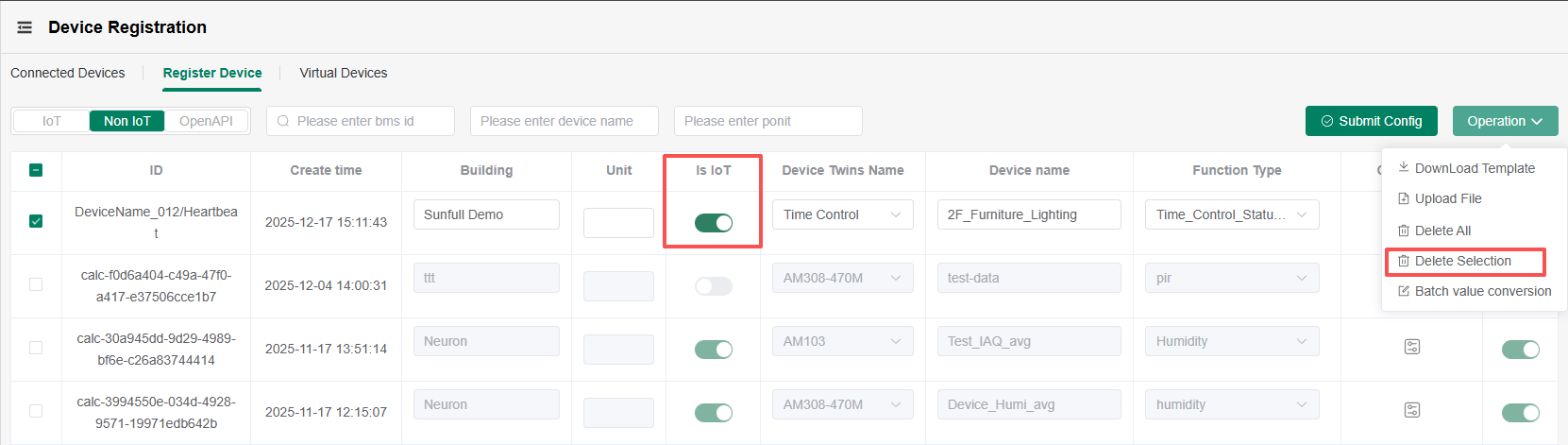
- Scenario One: Device not synchronized to IoT Hub.
- Device successfully integrated and reporting data in the data platform, but cannot be viewed in IoT Hub.
- Documentation Link: Configure Dashboard
Extension: Associate and View Device Data in Digital Twin Scenarios
1. Create a Model Scene and Configure Charts Linked to Device Data
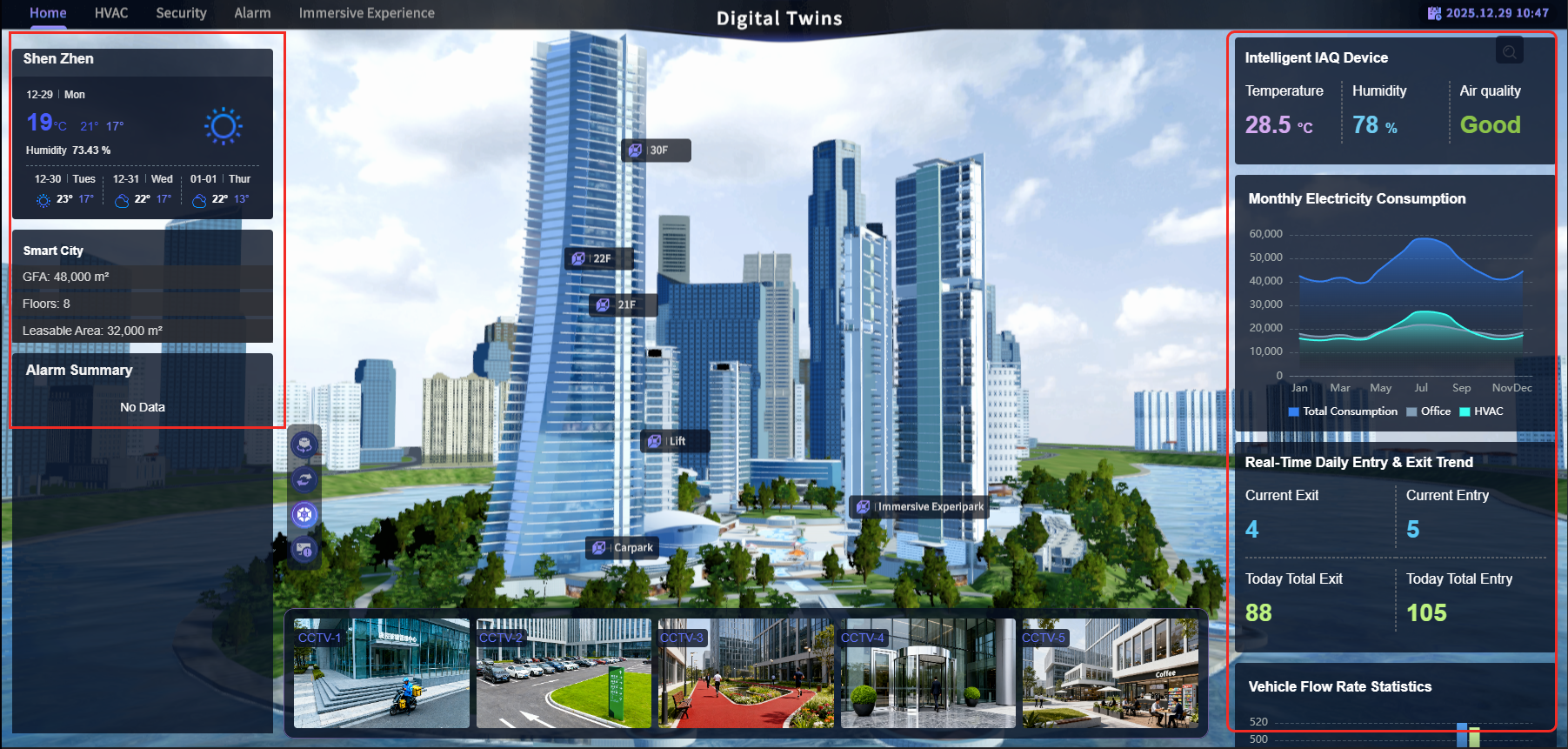
-- Expected Outcome: Enter the Twins Builder application. Create a model scene (e.g., "XX Building"), add charts and select the energy consumption device data to display. Verify that the device's real-time data and alert status are displayed normally by viewing the detail charts.
- Documentation Link:Create Scene / Configure Charts