Data platform access pre-configuration
Overview
After completing hardware access configuration, you need to perform a series of pre-configurations in the data platform before accessing it, so that the platform can recognize, receive, and process device data.
Before You Start
Permission Configuration
To ensure the following operational process proceeds normally, please confirm that you have Project Administrator permissions.
Prerequisite Configuration
Before accessing devices to the Neuron Data Platform, please ensure you have completed the Hardware Access Configuration. Hardware access configuration is a crucial prerequisite for devices to establish communication with the network server and complete data parsing, akin to obtaining "network access permission" and "language translation" for the device, ensuring its data can be correctly received and understood.
Pre-configuration Operations
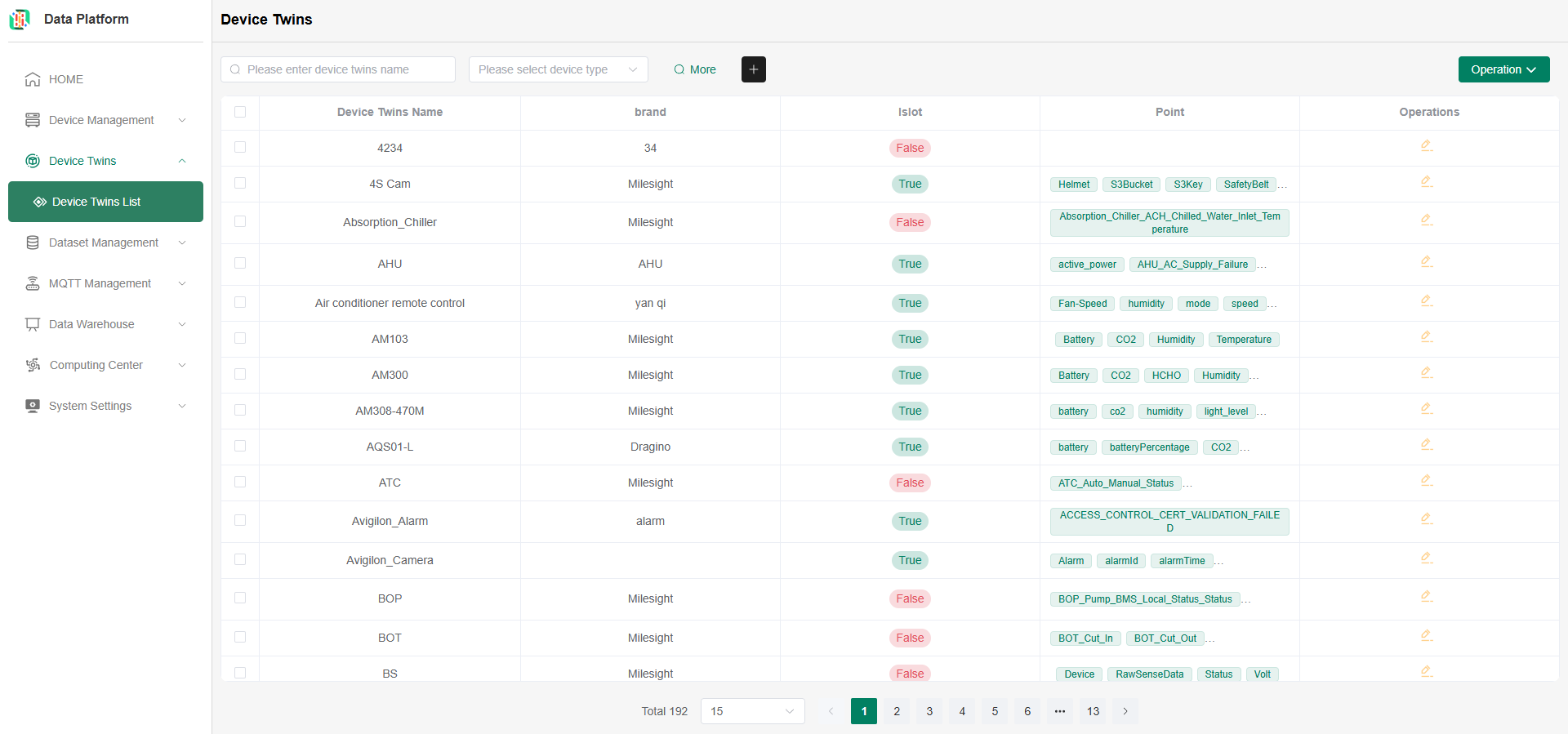
Configure Device Twins
Regardless of the access method chosen, the device twins needs to be configured in advance. The platform identifies data through the device's device twins.
Device twins can be pre-configured in the platform's DeviceTwins List before device access, or configured step-by-step during the device access process. For details, please see 【DeviceTwins Management】.
Pre-configuration for MQTT Access
Devices accessed via MQTT need to confirm and configure in advance:
- MQTT Server
- Topic
- Data format reported by the device
Configure MQTT Server
Click MQTT Management - MQTT Server in the left menu to view existing MQTT Servers in the system. Click the Add button to add your MQTT Server.

Fill in the MQTT Server information(Requires Project Administrator permissions):
- Name: Must be unique. Required;
- Host/Port: Input according to the MQTT Server information. Required;
- Username/Password: Fill in if available;
- SSL Certificate: The host prefix without a certificate is
tcp://, with a certificate it isssl://;- Interface without certificate:

- Interface with certificate (SSL configuration):


- Interface without certificate:
- Status: Enable.

Configure Topic
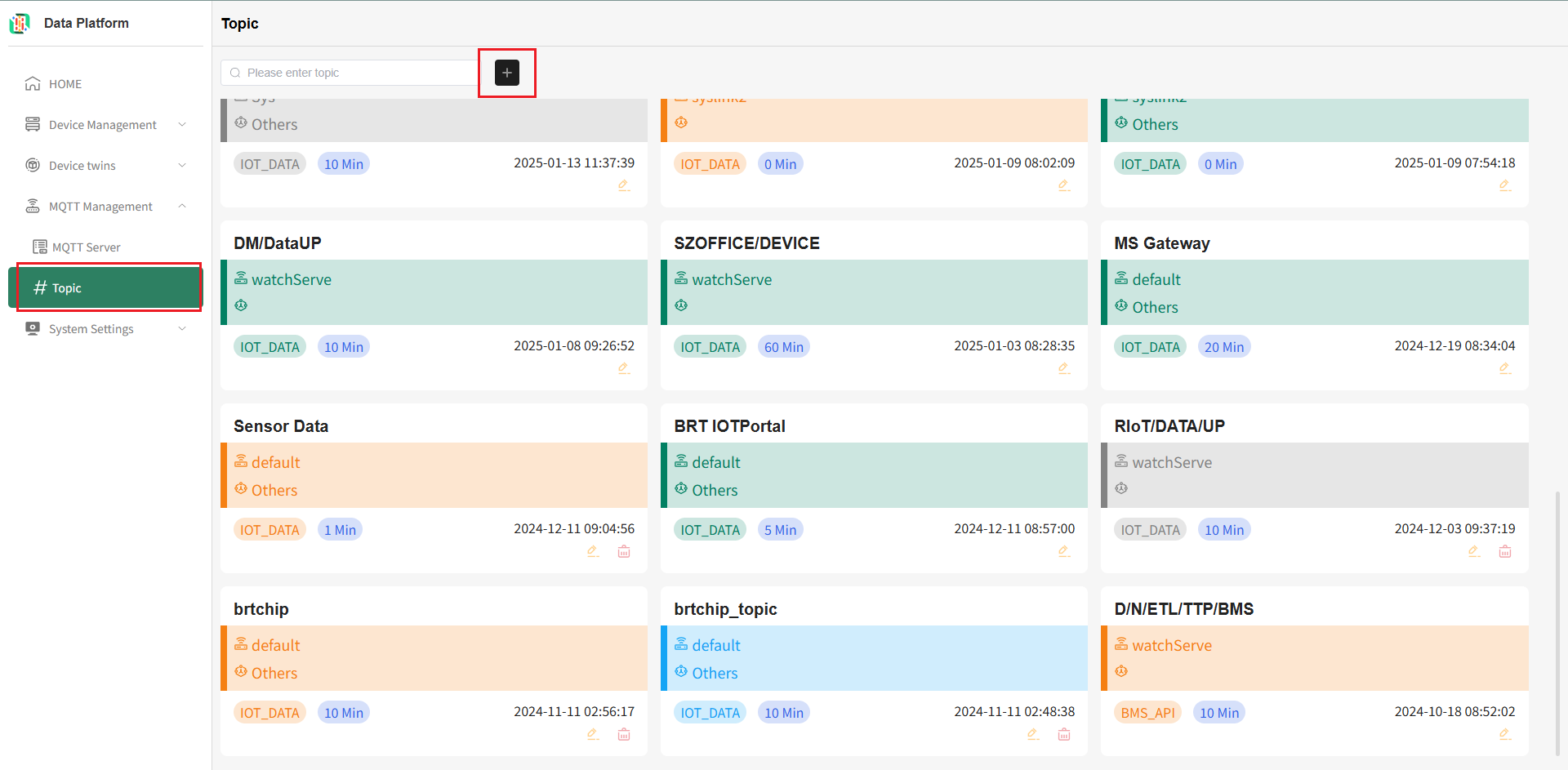
Click MQTT Management - Topic in the left menu to view existing Topics in the system. Click the Add button to add a new topic.
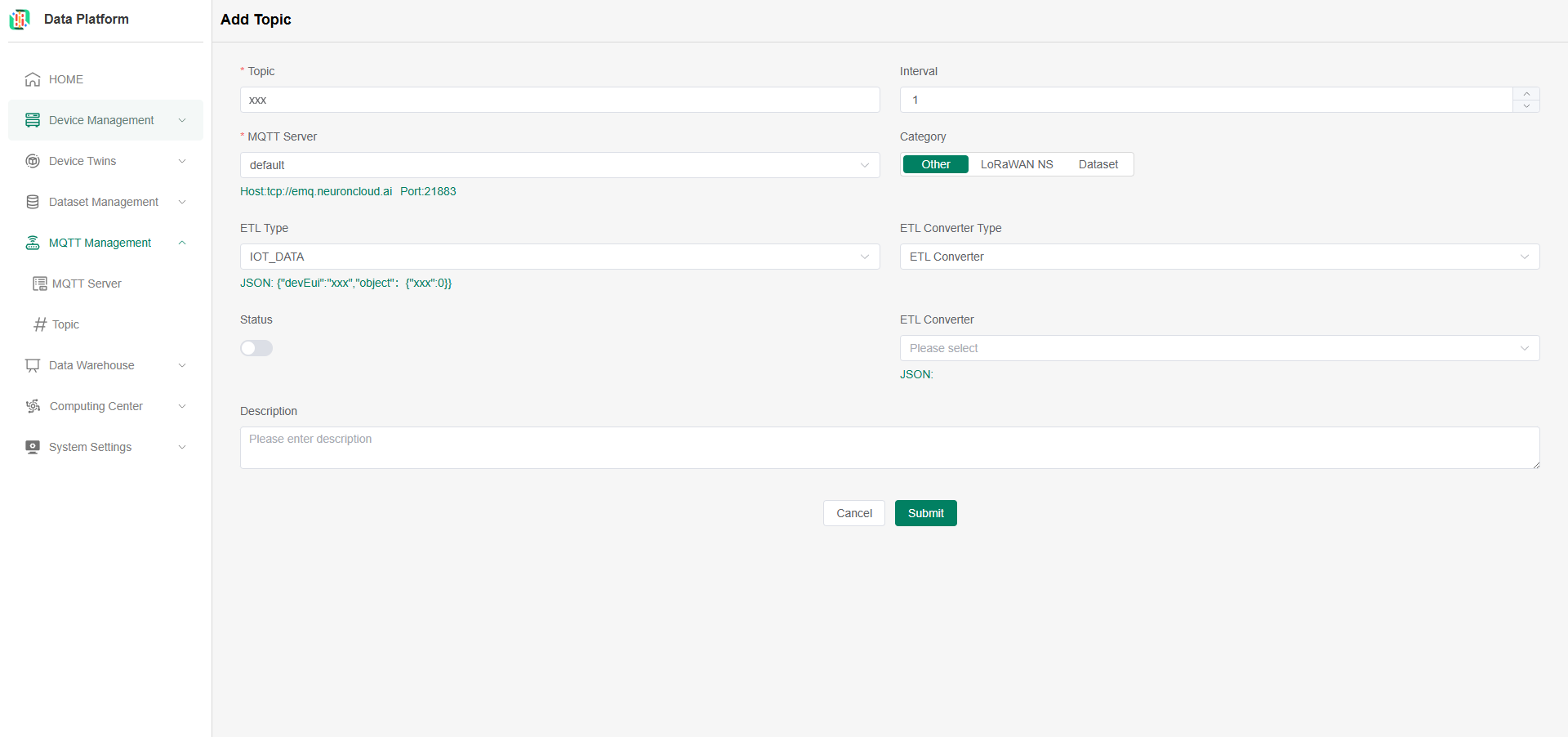
- Topic: Required. Enter the Topic to subscribe to;
- MQTT Server: Required. Select the MQTT Server to use. If none exists, add one first (Configure MQTT Server);
- Category: The system is divided into three categories;
- Other: Default selection, indicates the Topic only supports Exact Match (the topic name must be completely consistent for successful subscription, only allows topic level separator
/and normal UTF-8 characters, cannot contain+and#); - LoRaWAN NS: Indicates the Topic supports Wildcards (Wildcard format is not a complete, specific topic name but a topic filter used for subscription, which can match multiple specific topics, usually containing
+or#characters); - Dataset: This feature is not yet available.
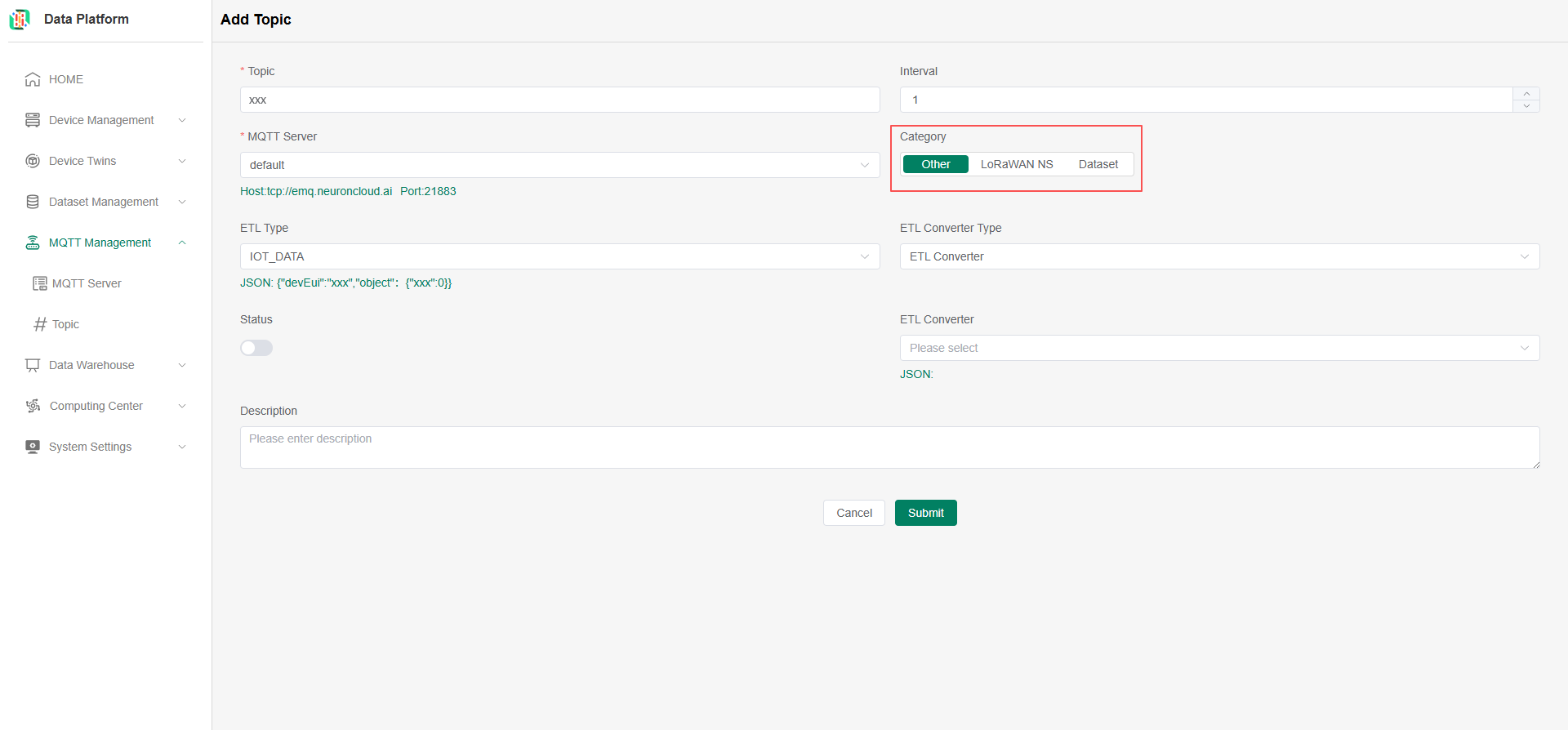
- Other: Default selection, indicates the Topic only supports Exact Match (the topic name must be completely consistent for successful subscription, only allows topic level separator
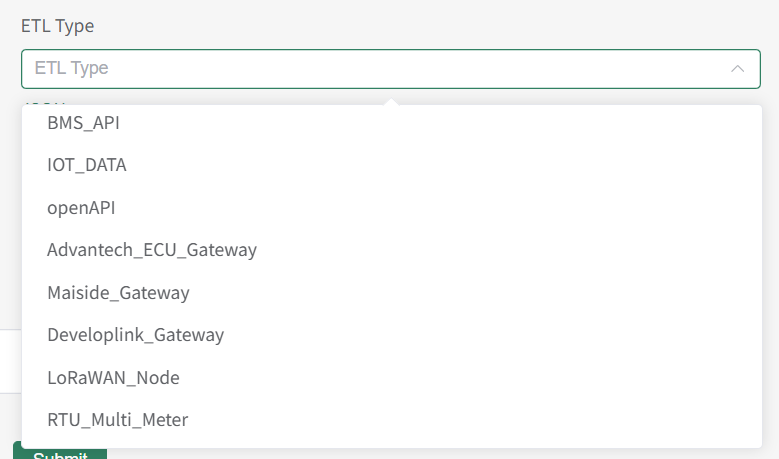
- ETL Type: Required. Select the data type (IoT/BMS/OpenAPI, etc.). For example: For IoT devices, select IOT_DATA; for BMS devices, select BMS_API; for access via openAPI, select openAPI;

- After selection, check the JSON format below to see if it matches the data format reported by your device. The system will subscribe and parse this JSON according to the MQTT Server information. If the format does not match, device access will fail, and you need to Select/Add an ETL Converter (see below Configure ETL Converter).
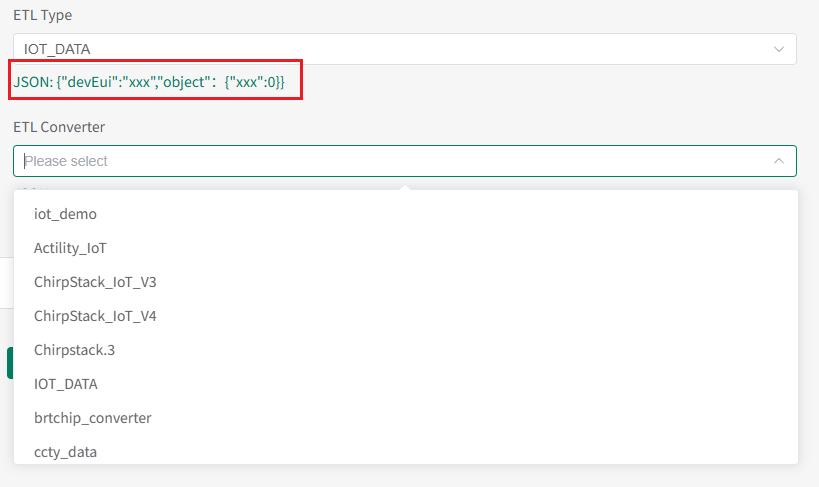
- ETL Converter Type: If the default JSON format does not match your device, an ETL Converter is needed as a bridge to precisely specify the matching relationship between the single device data object and the system's required data format. Currently, only ETL Converter is supported; JS Converter is coming soon;

- ETL Converter: Given the data format mismatch, Add and select your ETL Converter (see below Configure ETL Converter);
- Status: Enable.
Configure Data Format Reported by Device
Configure ETL Converter
Click System Settings - ETL Converter in the left menu to view existing ETL Converters in the system. Click the Add button to add a new ETL Converter.
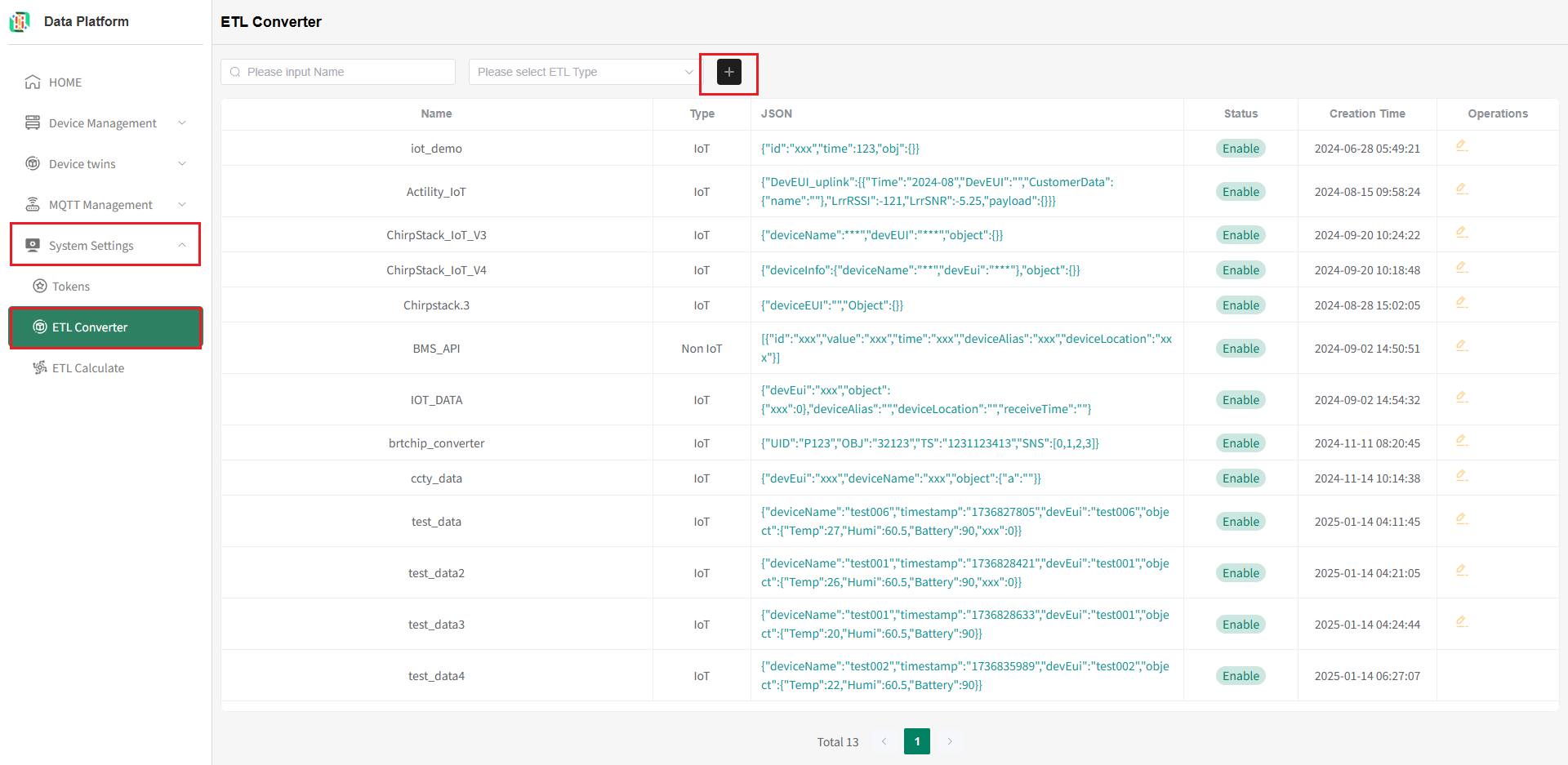
Fill in the ETL Converter information
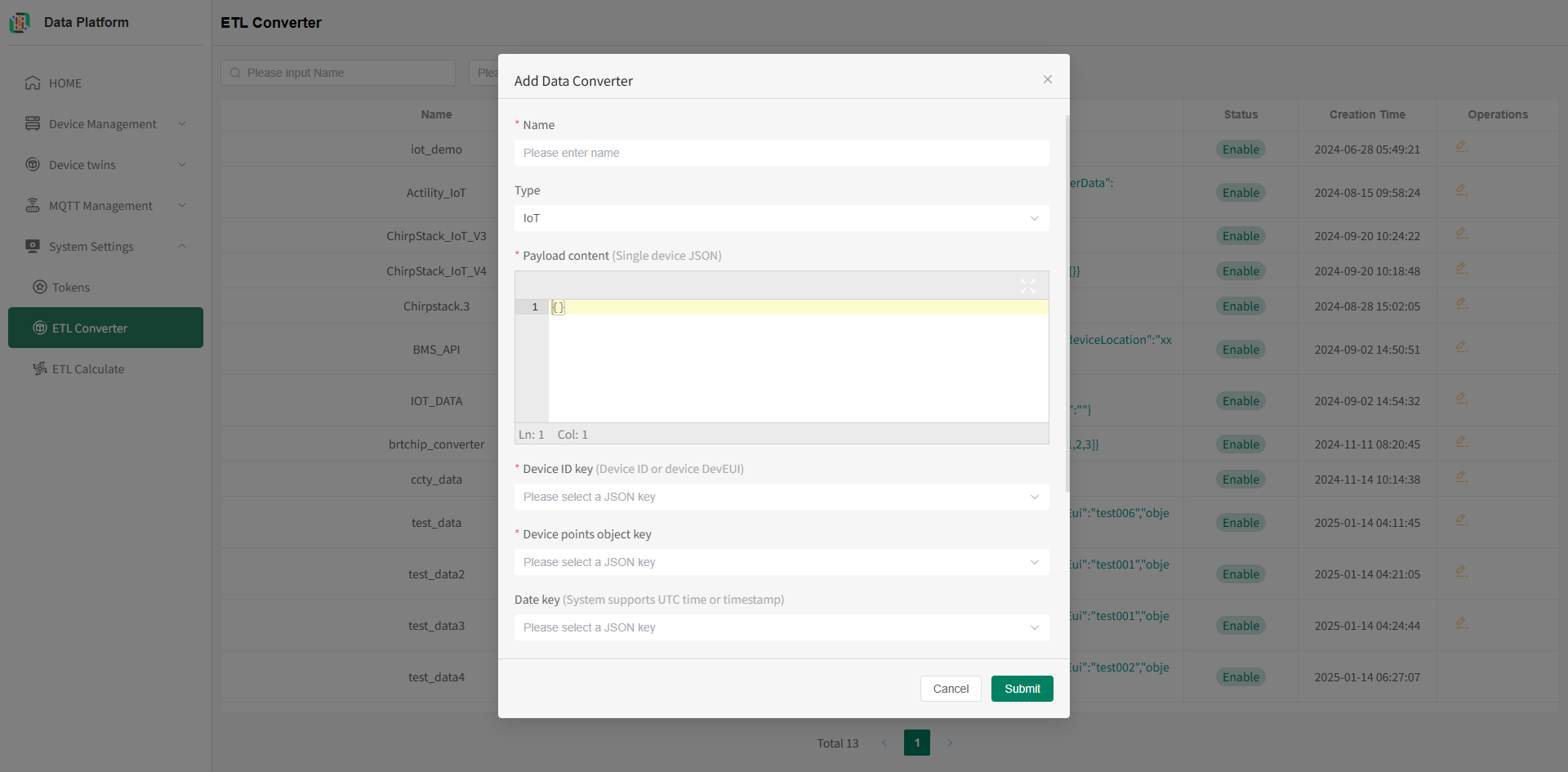
- Name: Must be unique. Required;
- Type: IoT / Non IoT;
- Payload content: The JSON format of the data reported by the device. Required;
- Device ID key: Matches the unique ID in the JSON used to identify the device, usually Device ID / DevEUI. Required;
- Device points object key: Matches the points of the device-reported data in the JSON. Required;
- Date key: Matches the time of the device-reported data in the JSON;
- Device name key: The device name used for display in the platform after matching;
- Device location key: The device location information used for marking in the platform after matching;
- Status: Enable.
For operations, see 【ETL Converter】.
Confirm Device Access Method
After you have completed all the above pre-configuration operations, you can choose the method for your device to access the data platform. The data platform currently supports four device access methods. You can choose the most suitable one based on your actual needs:
- LoRaWAN: Connect to your existing LoRaWAN network server to obtain IoT device data.
- MQTT: Supports all types of devices accessing via the MQTT protocol (This method requires confirming and configuring the MQTT Server, ETL Converter, and Topic to be used in advance).
- API: Call the API interface to directly obtain device data.
- Bluetooth: Obtain device data via Bluetooth connection, currently only applicable to Bluetooth electronic locks.