Device Twins Management
Overview
This module is used to define and manage device device twins, which are standardized data templates for devices in the data platform. By maintaining data points and their related configurations, it unifies and standardizes device data structures, control commands, and advanced functions (such as device reverse control, data secondary calculation), laying the foundation for device interoperability and management.
In the Neuron platform, a collection of devices of the same type possessing identical capabilities or characteristics is referred to as a device twins.
For example: Indoor Environmental Monitoring Sensor --> Can define a device twins as IAQ, with Function types (data points) including Temperature / Humidity.
Access Method and Prerequisites
How to access
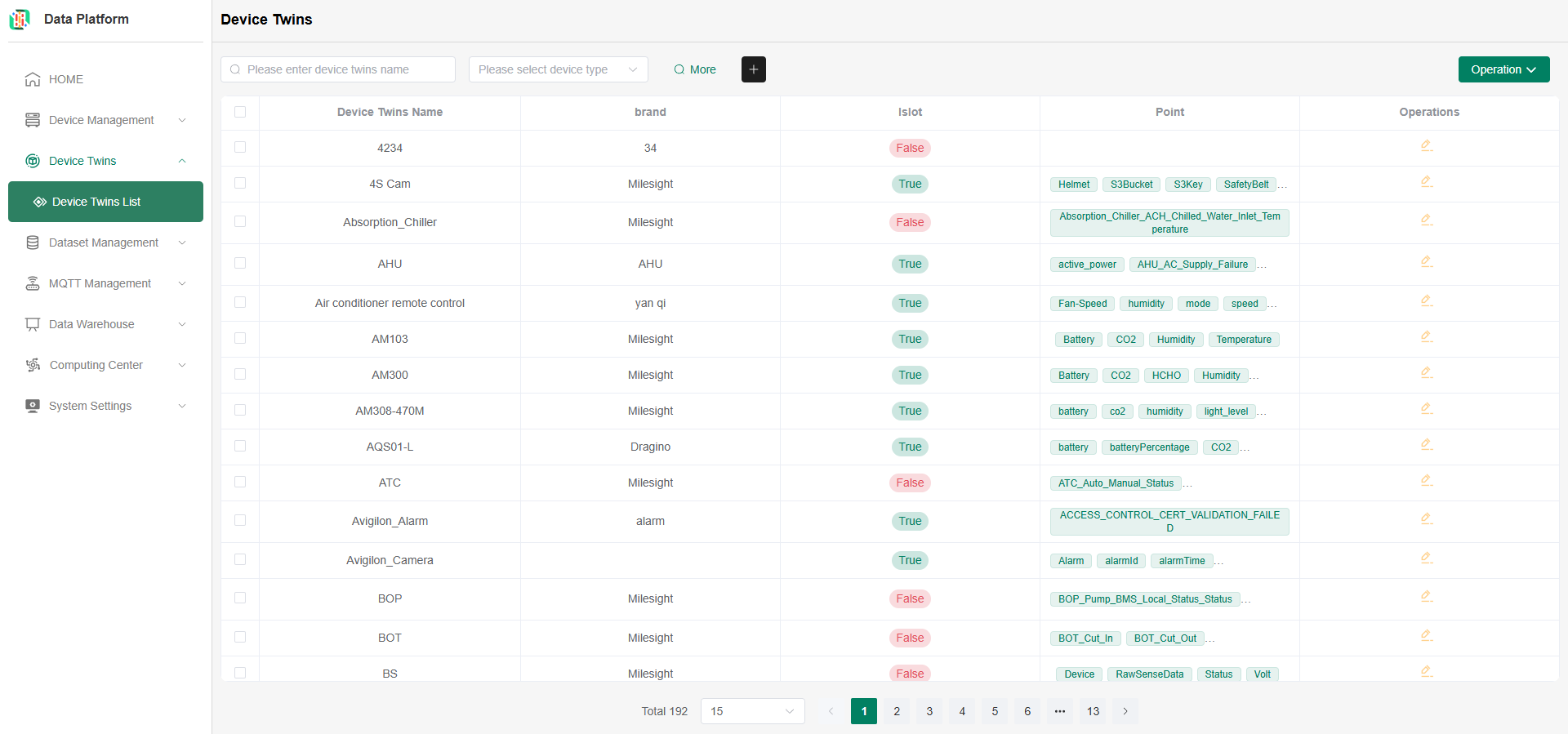
In the Tenant Edition of the platform, click the 'Device Twins' menu, select 'Device Twins List' to enter the device management module.
The device twins list supports regular queries by name and device type. Click "More" in the figure below to expand queries by device twins system, subsystem, Function type, whether it's IoT, and other dimensions, as shown below.
Before You Start
Permission Configuration
To ensure the following operational processes proceed normally, please confirm that you have Project Administrator permissions.
Create Device Twins
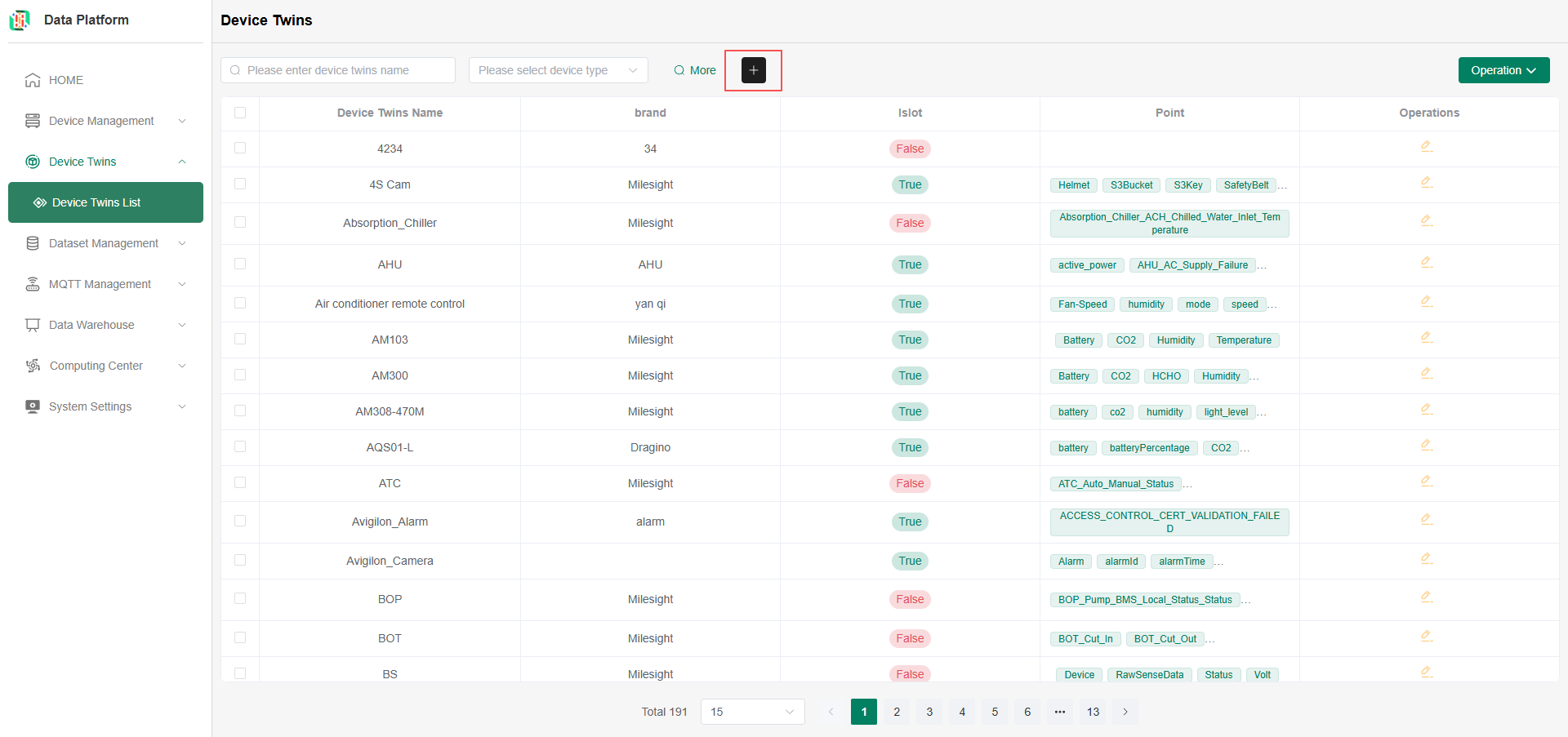
- Click the Add button in the figure below to enter the device twins addition page.
Add Device Twins
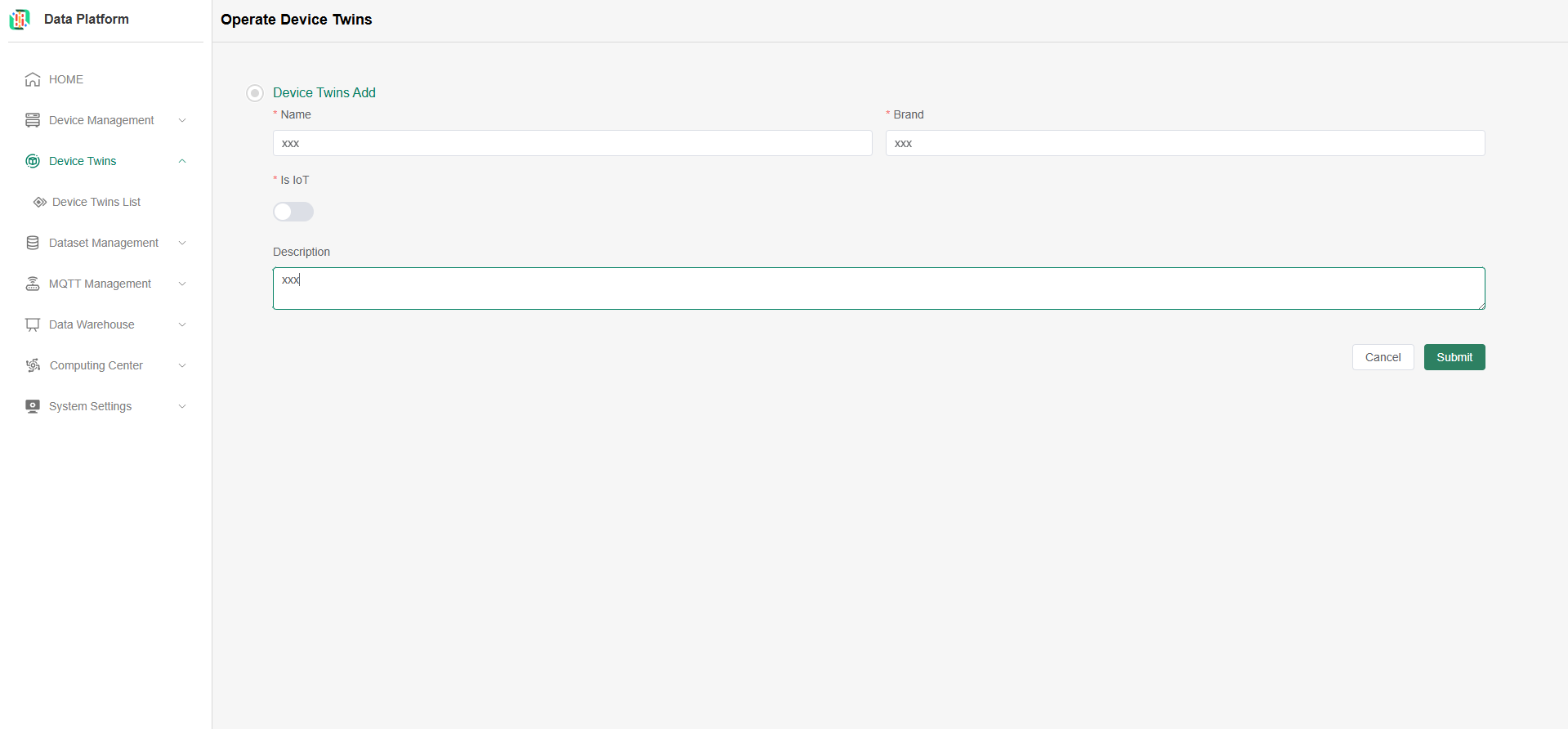
On the device twins addition page, fill in the required content and click "submit" to successfully add a device twins, as shown below.
Device twins names must be unique. The system verifies name uniqueness upon submission; adding will fail if the name is duplicated.
- After successfully adding the device twins (a success popup appears), you can proceed to add Function types under the device twins, as shown below.
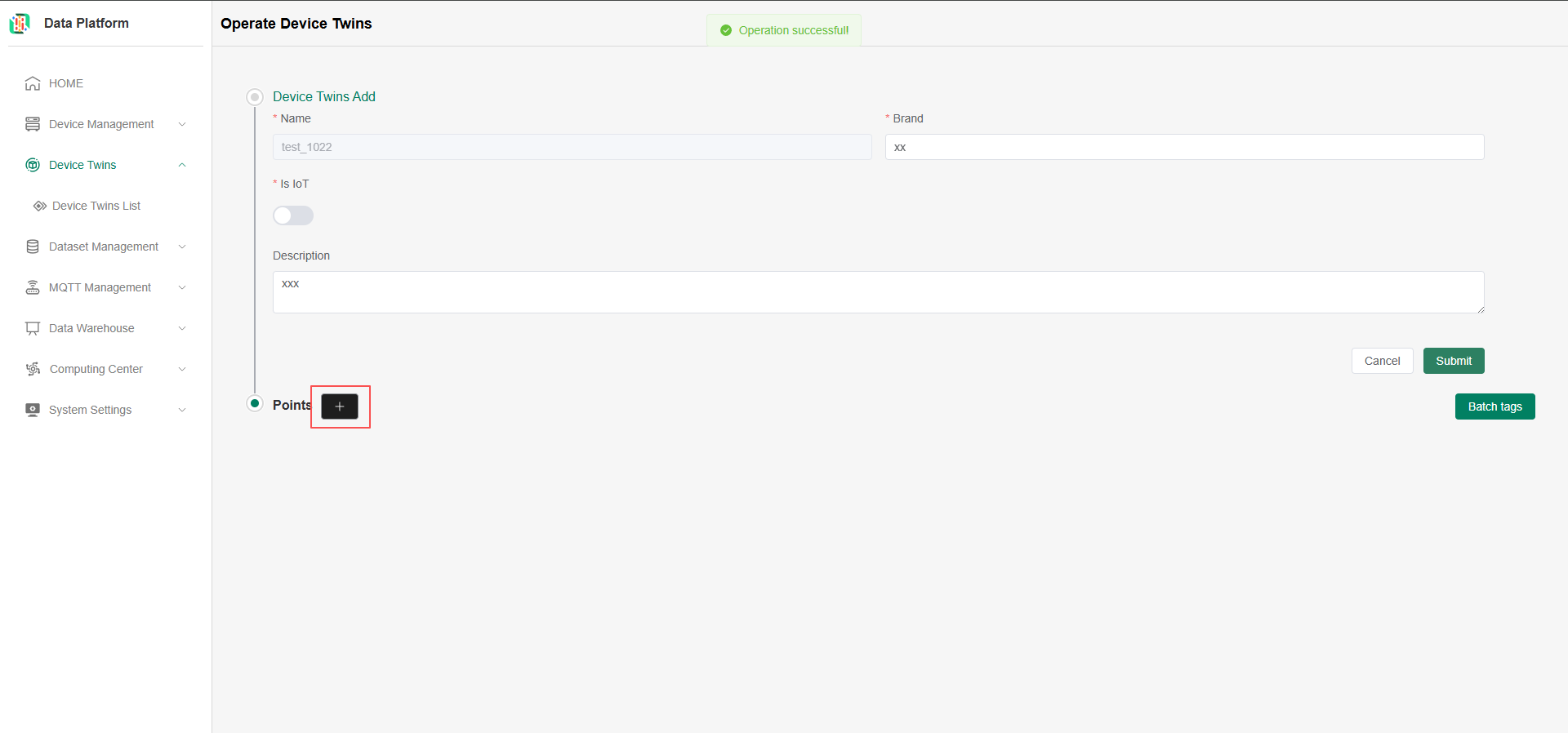
Add Function Type under Device Twins
-
As shown above, click the "+" button next to Function type, then click the Function type input box to add a Function type under the device twins, as shown below.
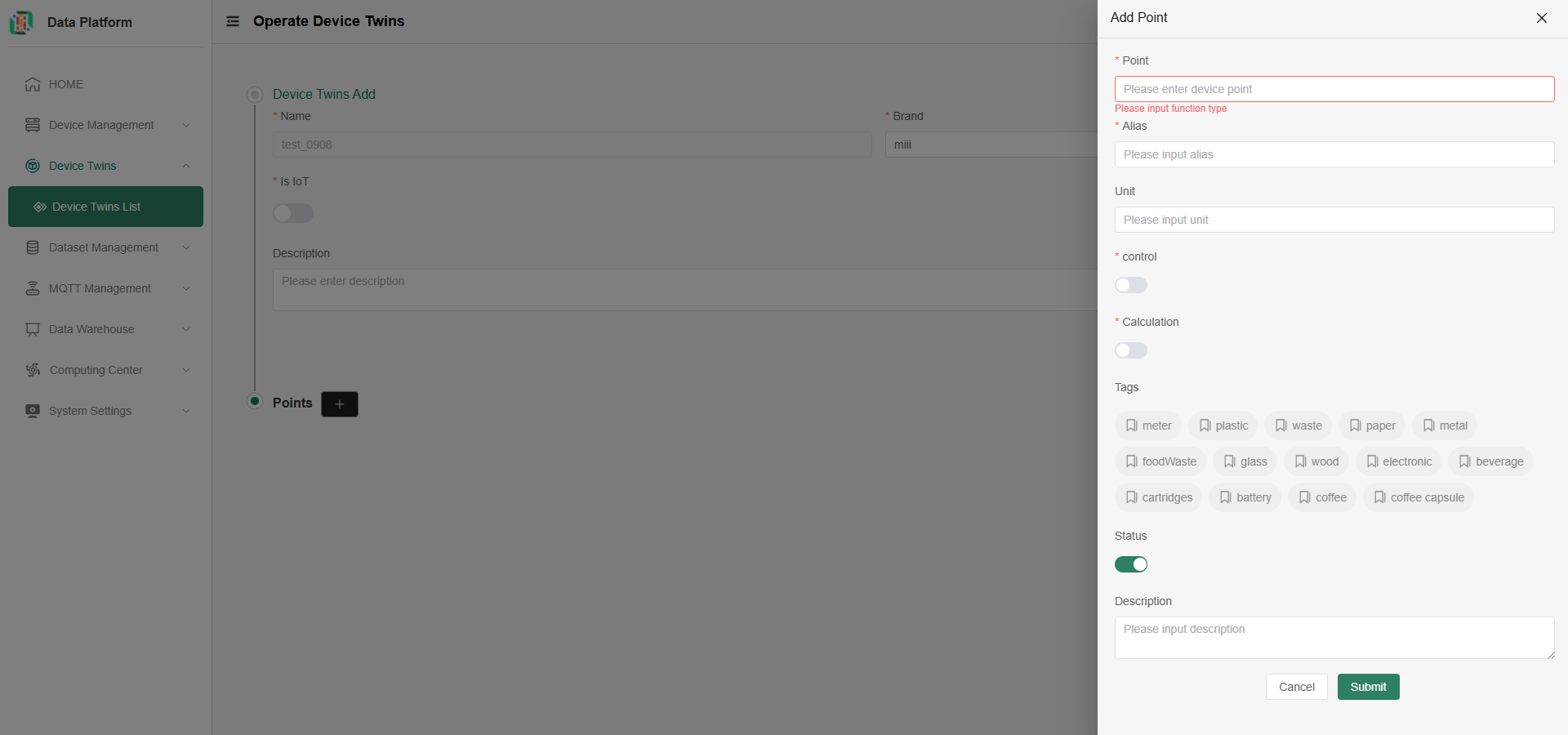
- Users can configure device reverse control according to device needs, as shown in the red box in the figure below.
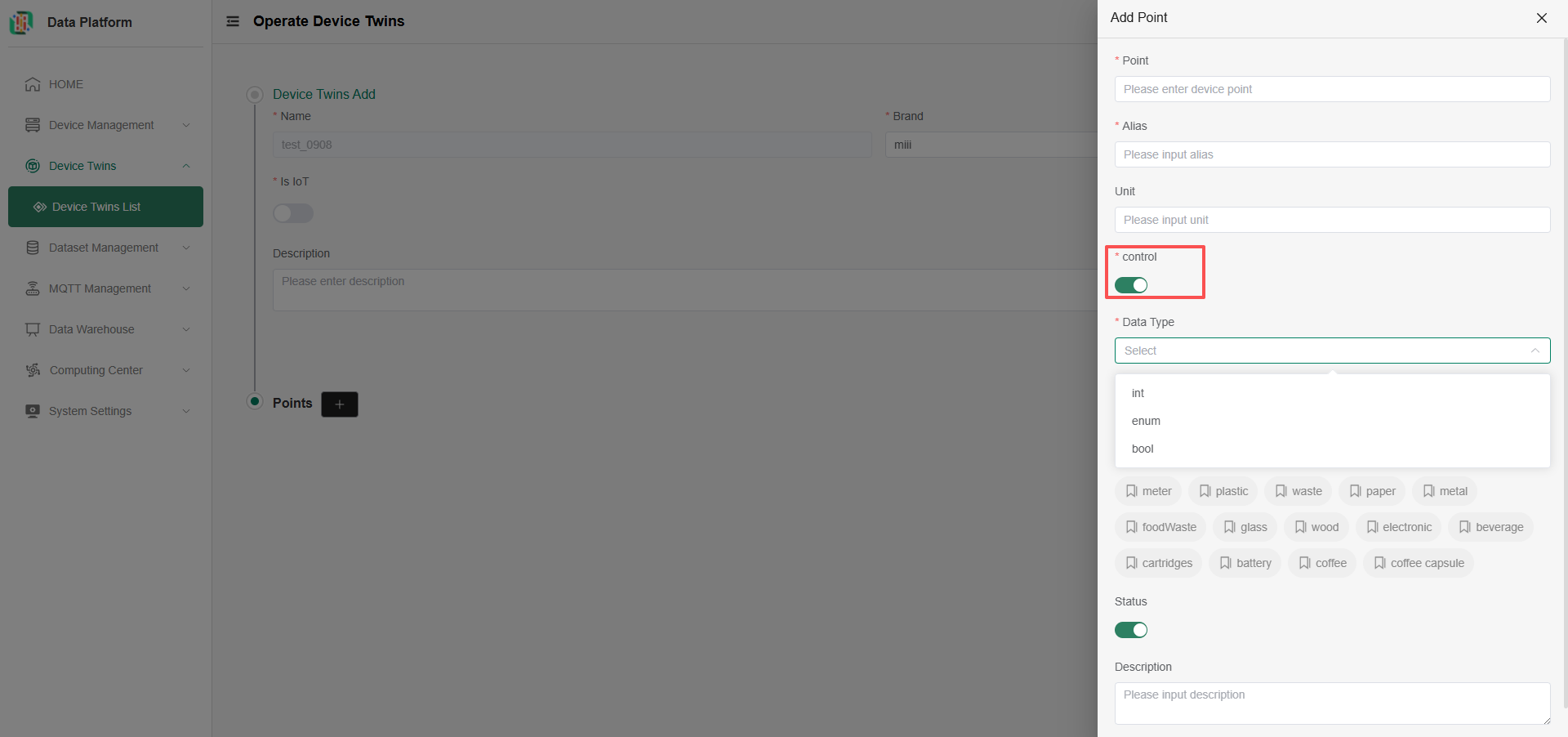
- Users can configure device reverse control according to device needs, as shown in the red box in the figure below.
Data Type Description:
- int/float: Configuration for numeric function points. Maximum, minimum values, and step size can be set. Specific usage scenarios include: Air conditioner control temperature.
- enum: Configuration for enumeration function points. Enumeration values and descriptions can be set. Specific usage scenarios include: Air conditioner modes [Cooling, Heating], etc.
- bool: Configuration for boolean function points. Operations corresponding to true and false values can be set. Specific usage scenarios include: Air conditioner switch [true for on, false for off].
Refer to the dedicated document for 【Device Control】.
Modify Device Twins
For device twins not yet used by the system, all information can be modified. For device twins already in use, only adding Function types and secondary calculation configurations are allowed.
- Modify Device Twins
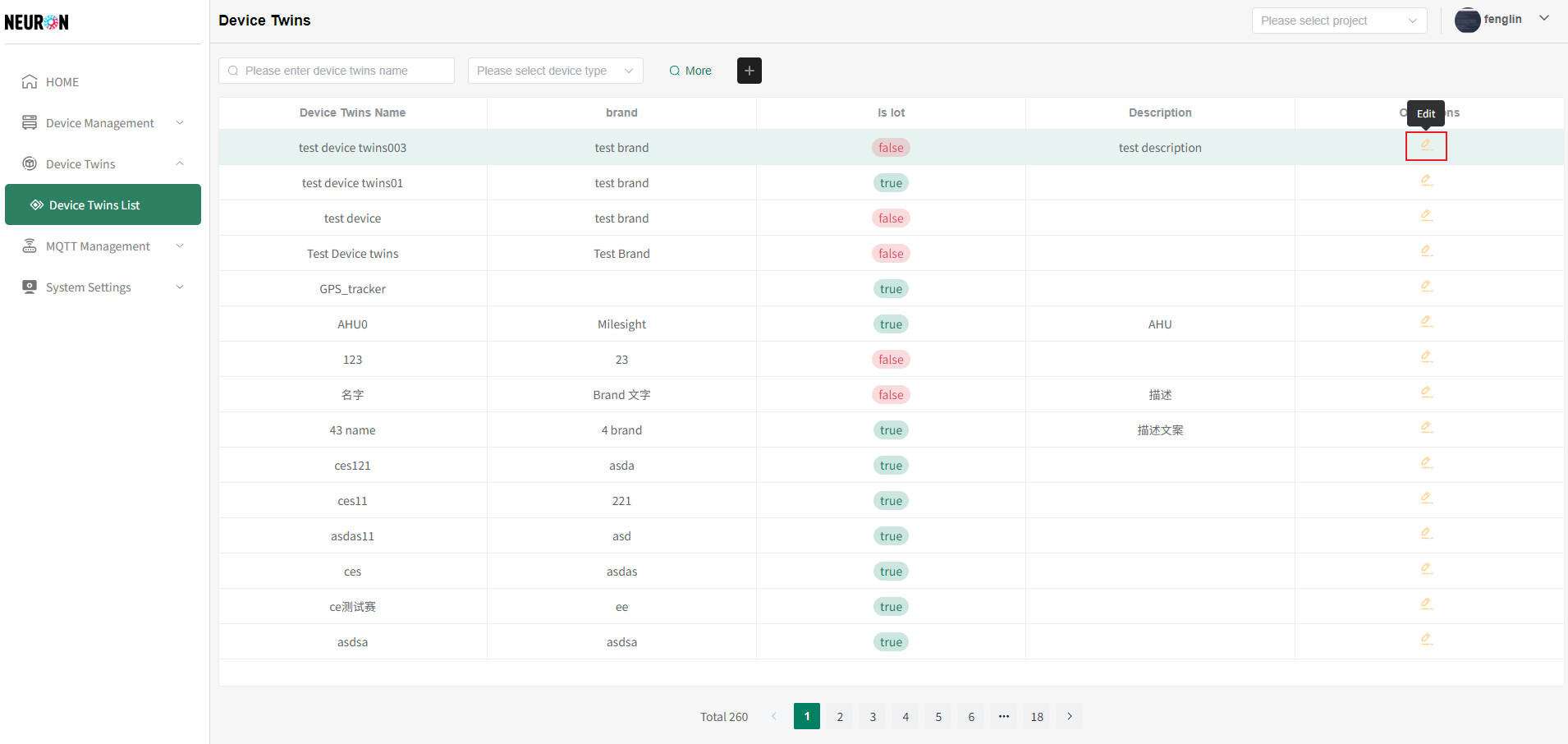
As shown below, on the device list page, click the "Modify" button on the right side of the device twins that needs modification.
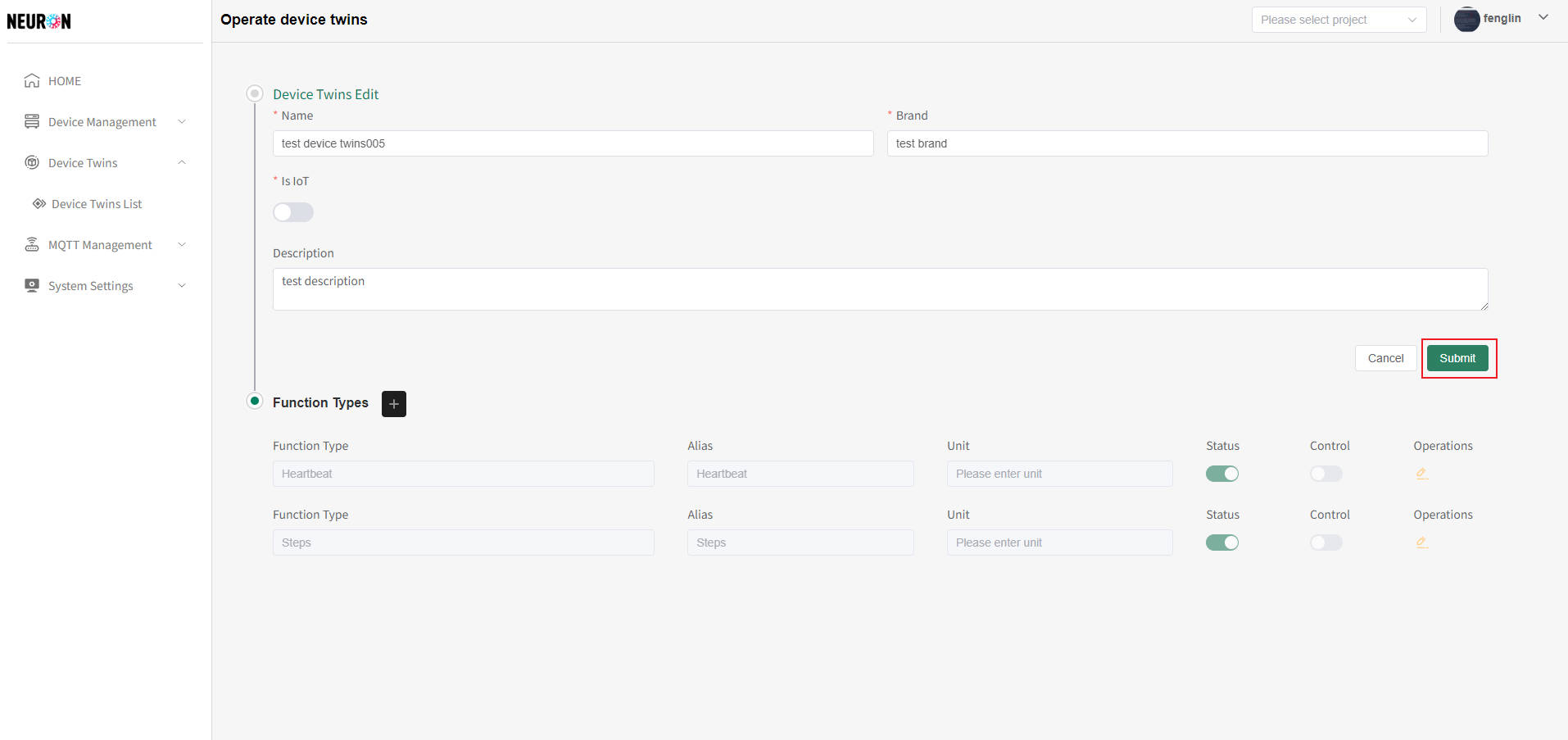
 On the device twins modification page, you can modify the name, brand, description, etc., then click "submit" to complete the device twins modification, as shown below.
- Modify Function Type under device twins
On the device twins modification page, you can add new Function types or modify Function type information, as shown below.
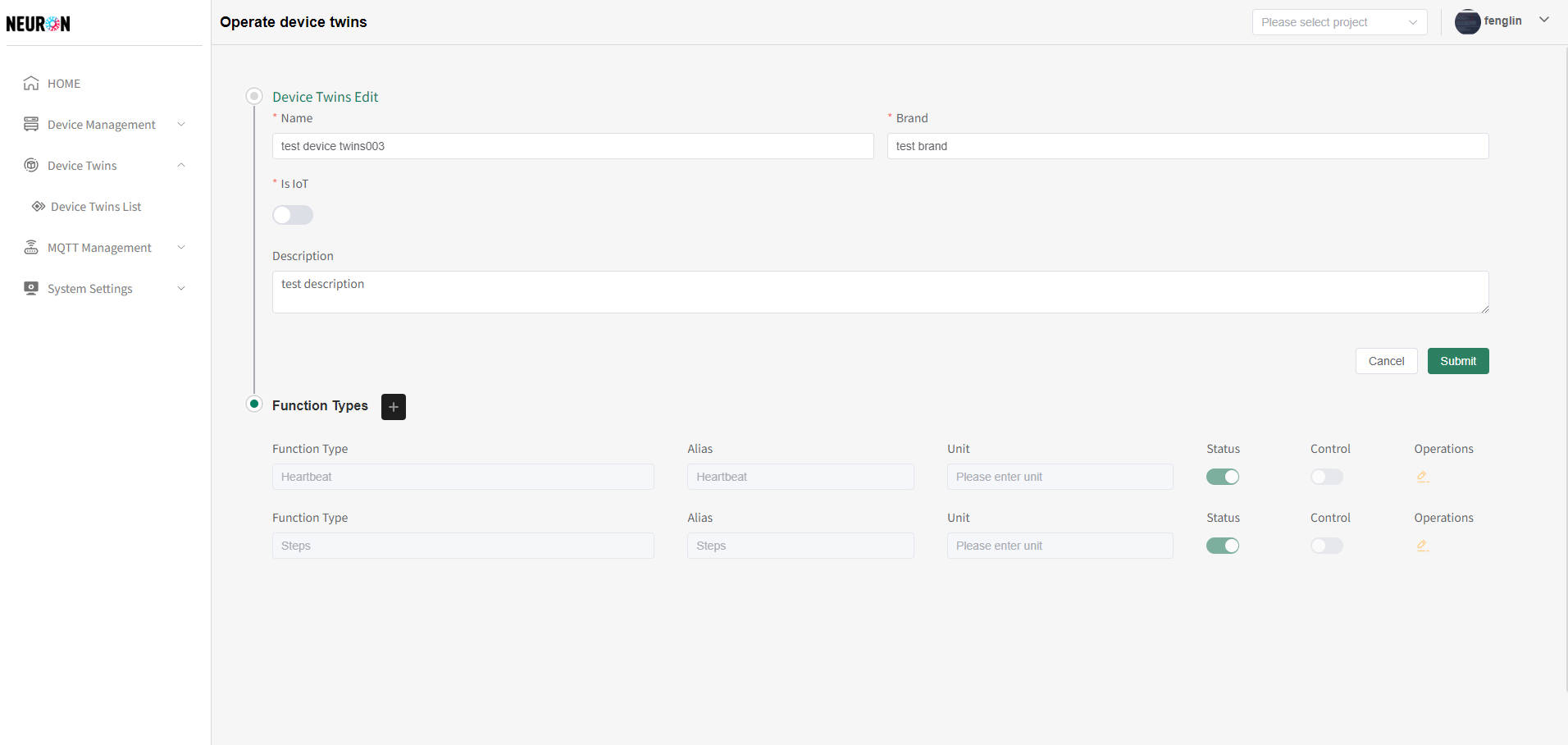
- Click the "+" button next to Function type to add a Function type to the device twins. For specific operations, see Add Function Type under device twins.
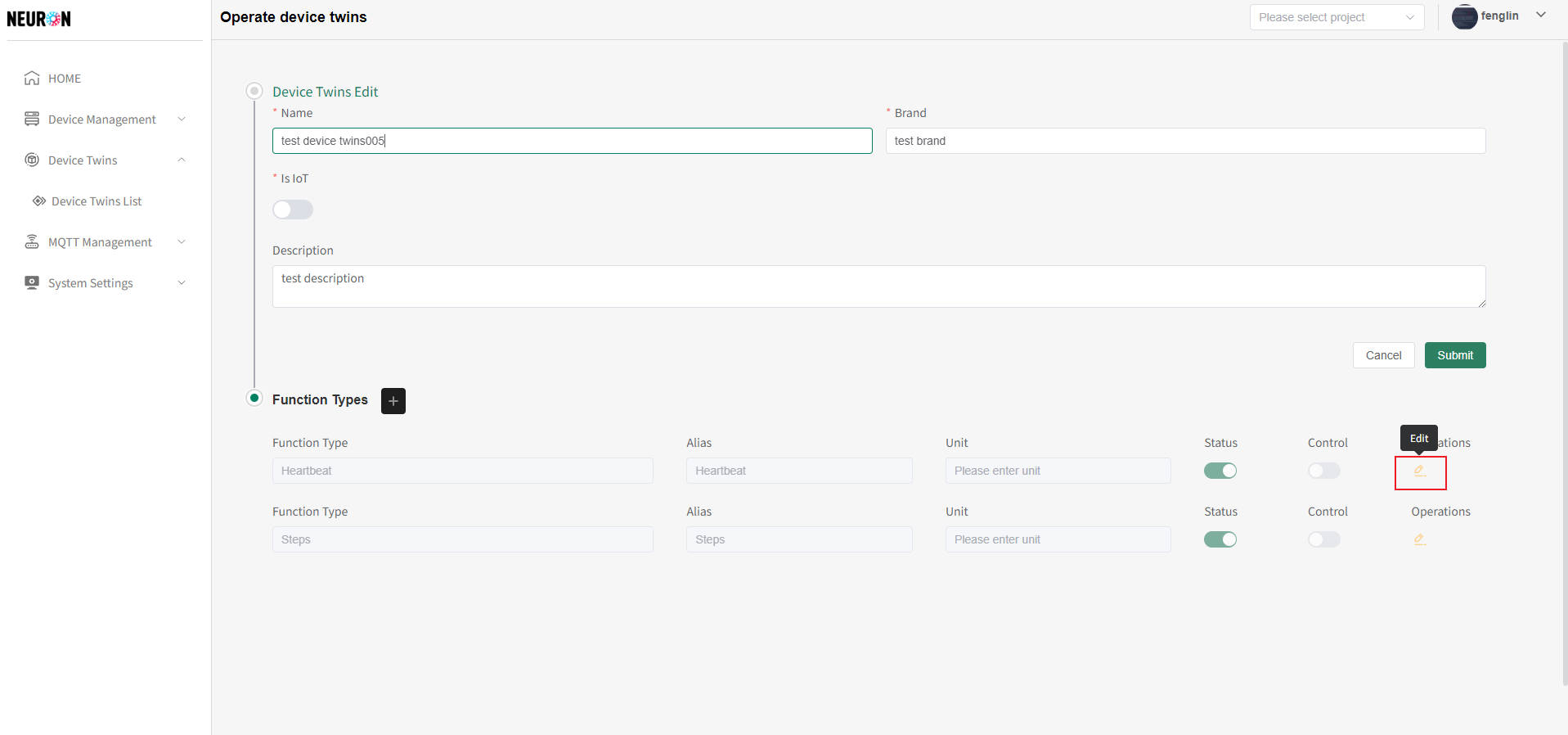
- Click the "Edit" button on the right side of the Function type list to modify a Function type under the device twins, as shown below.
 As shown below, after modifying the information and submitting, the device twins modification is completed.
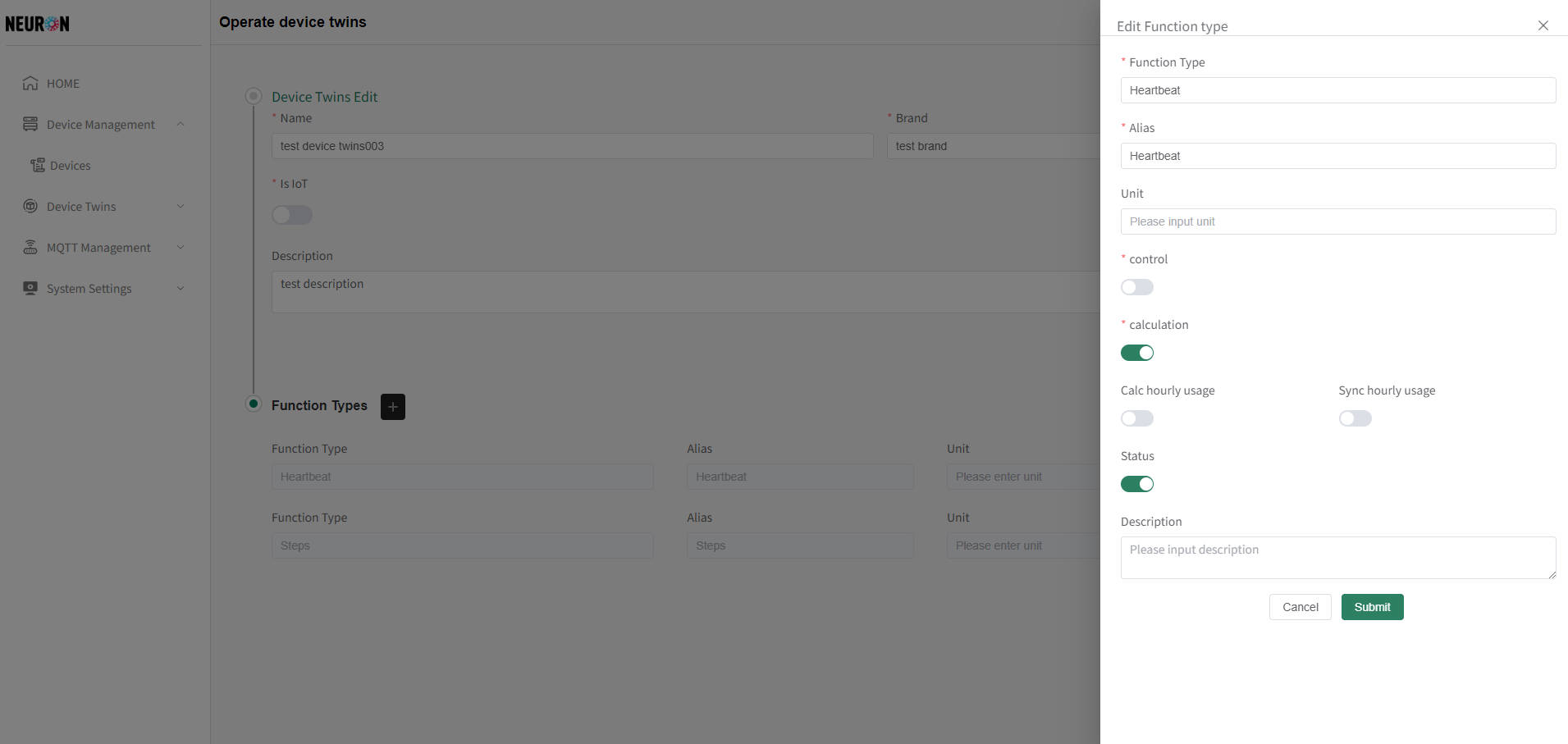
Calculation Secondary Calculation Configuration
After turning on the calculation attribute, two options appear. Specific information is as follows:
- Selecting "Calc hourly usage": The system will automatically calculate the hourly usage of the device for this Function type under the device twins.
- Selecting "Sync hourly usage": The system will automatically calculate and synchronize the hourly usage of the device for this Function type under the device twins.
Delete Device Twins
As the foundation for device data management, the object model is bound to a device. Once the object model is bound to a device, it cannot be deleted temporarily to ensure the consistency of system data.