Secondary Calculation Configuration for Device Data
Overview
This document primarily describes how to generate new calculated data based on existing device data (such as the average value of specific data from multiple sensors). It covers formula configuration, device calculation configuration, and data viewing, and is applicable to projects requiring secondary calculation scenarios like data aggregation and virtual device generation within the system.
For example: To query the humidity value within a building, it's necessary to calculate the average of the 'Humidity' points from all sensors in the building. This requires configuring a secondary calculation formula for average value calculation.
Formula Configuration
Access Method
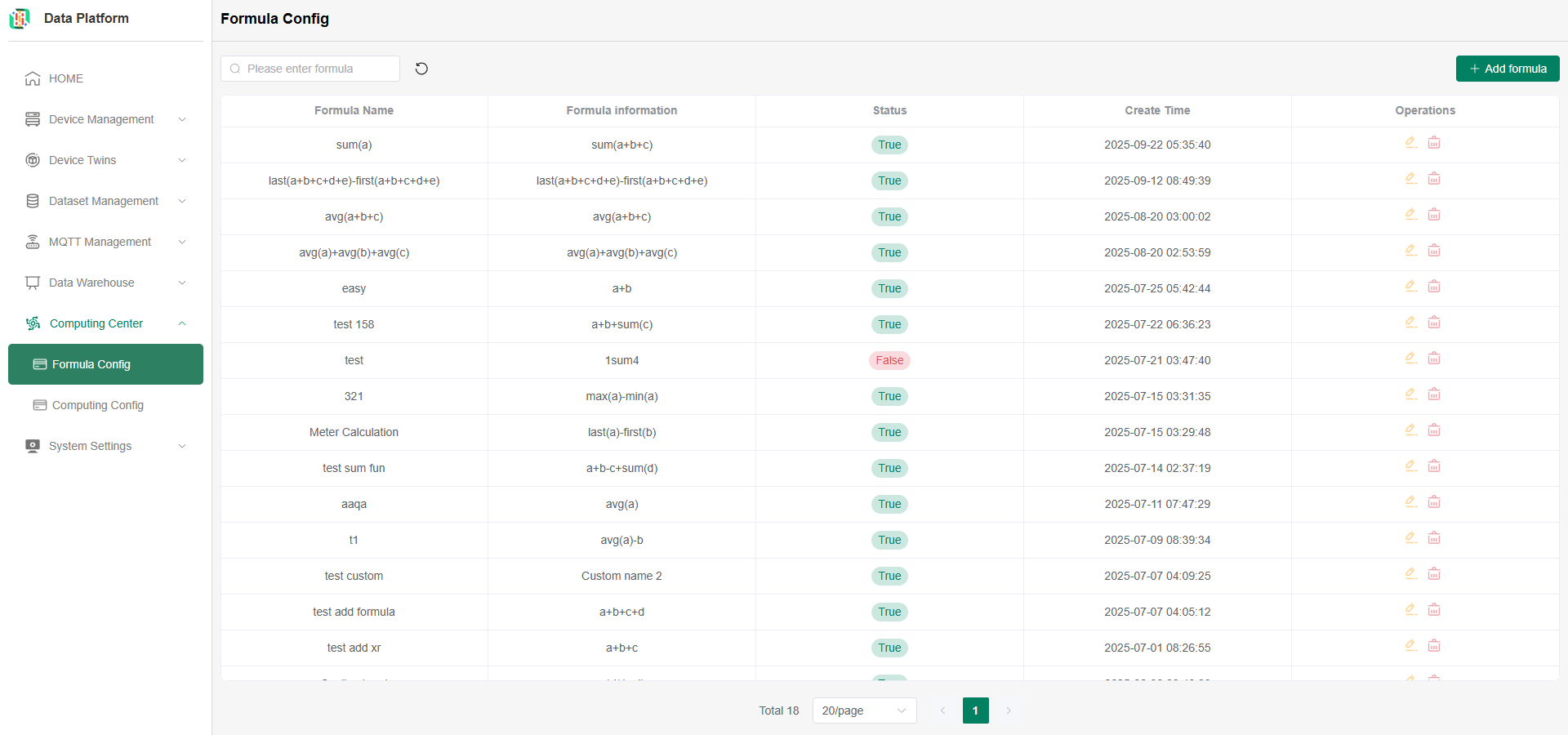
Click the "Computing Center" menu, then click the "Formula Config" button to enter the formula configuration module;
Supports fuzzy search for formulas. Click the refresh button to update the list. As shown below:
Add Formula
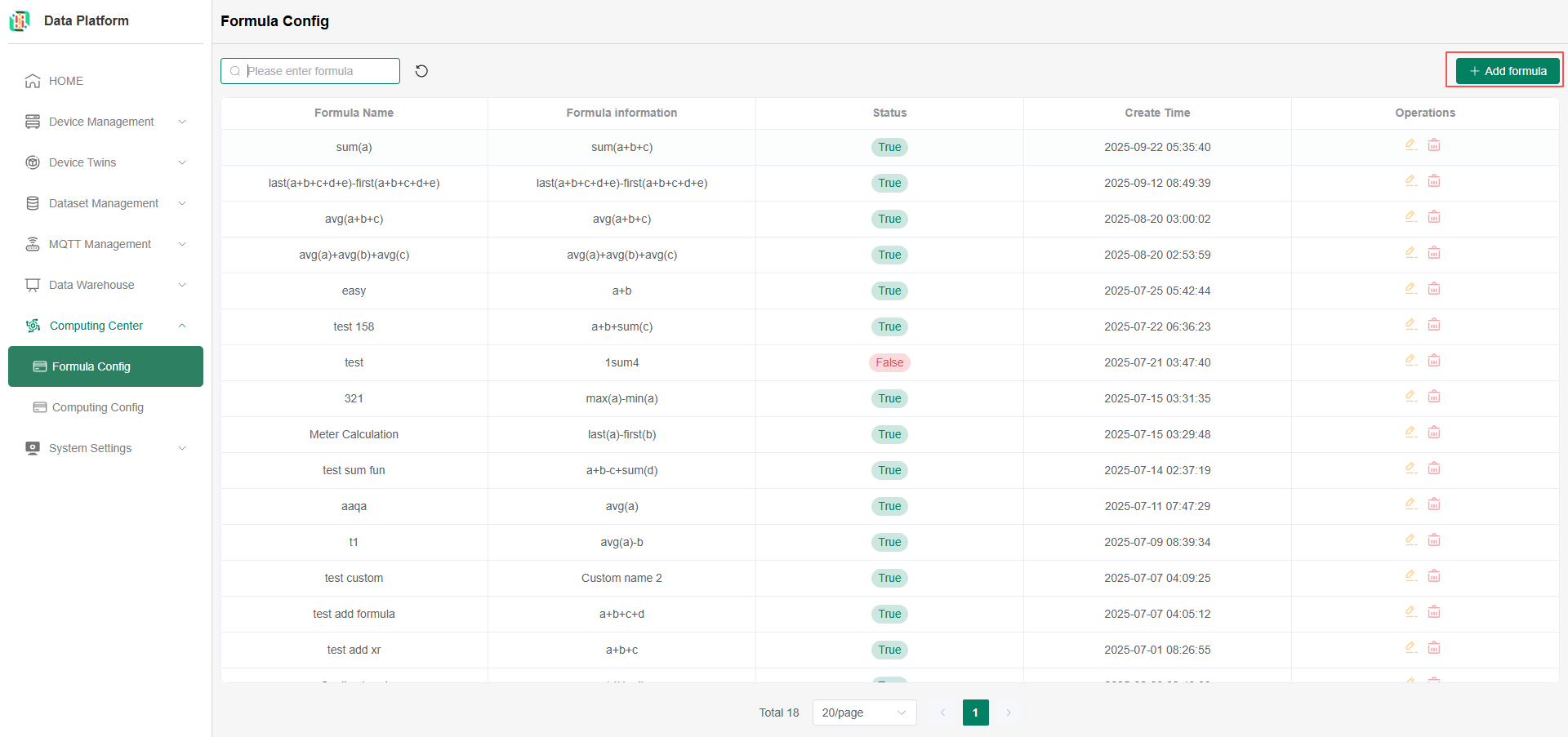
Click the add formula button on the right, as shown below:
Enter the formula name, then click 1. the button to the right of the formula field to open the soft keyboard for formula configuration; 2. Status must be set to ON to use this formula, as shown below:
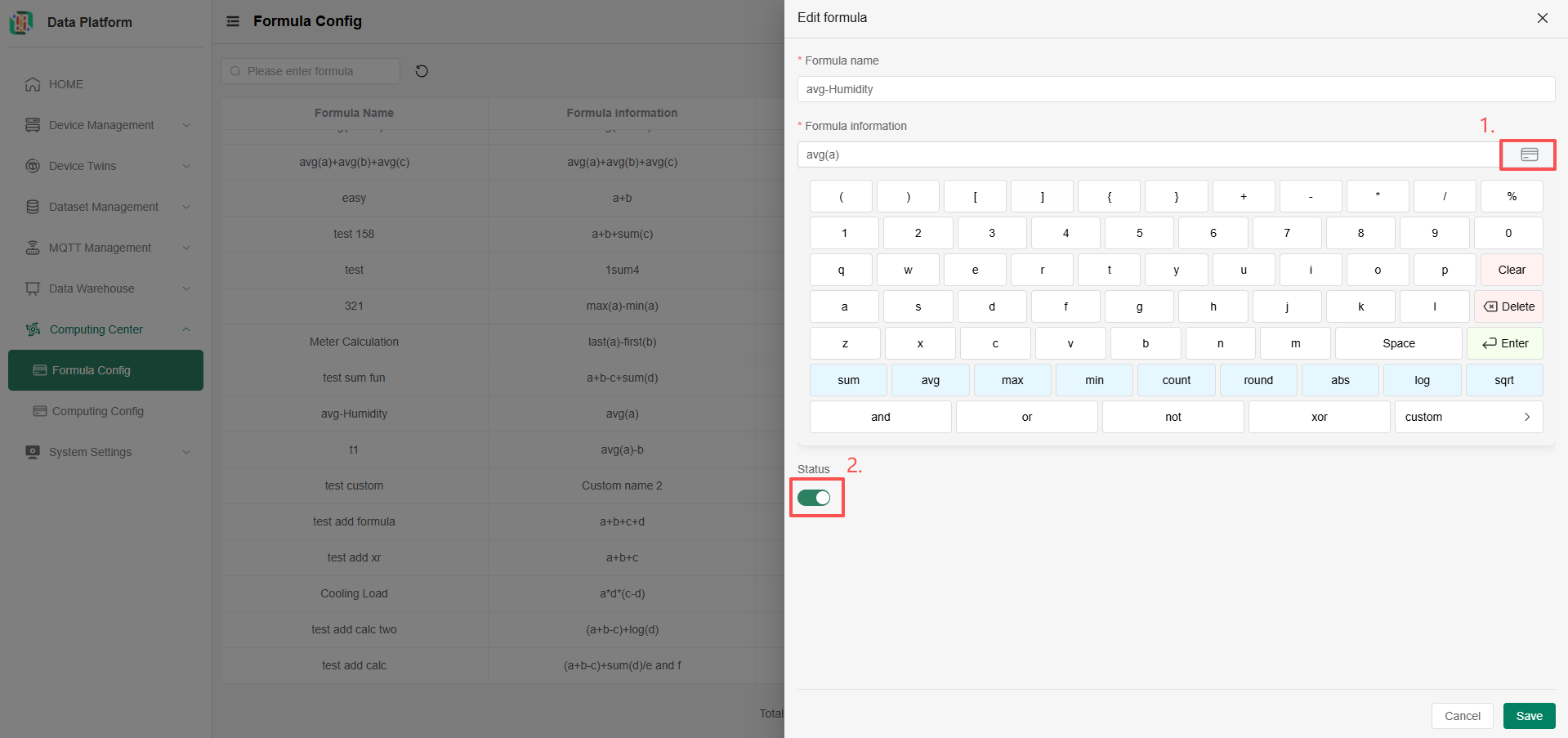
Note: The custom function selection in the lower right corner of the soft keyboard is not yet available. Stay tuned~
Modify/Delete Formula
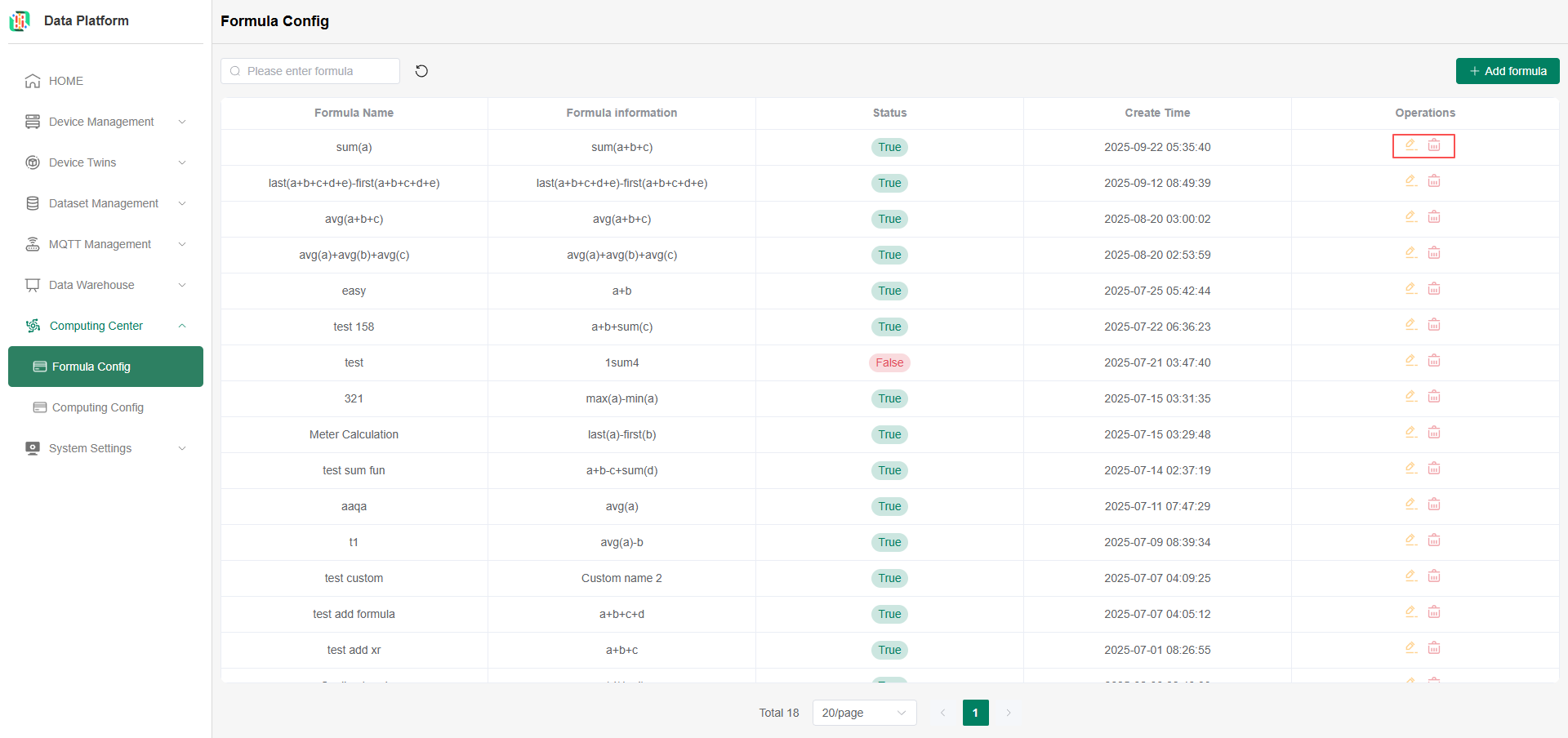
Return to the formula list, click on the formula you need to modify/delete, and click the "Modify"/"Delete" button on the right.
Note: Only formulas that are not in use can be modified/deleted.
Calculation Configuration
Access Method
Click the "Computing Center" menu, then click the "Computing Config" button to enter the calculation configuration module;
Supports fuzzy search. Click the refresh button to update the list. As shown below:

Add Device Calculation
Click the add configuration button on the right, as shown below:

Device calculation is divided into two sections: 1. Basic Configuration and 2. Formula Configuration, as shown below:

- Fill in basic configuration information:

-
Name: Enter the device calculation configuration name;
-
Calculation Data Type: Divided into Real Device, Virtual Device, and Data Source, Note: Data Source type is not yet available;
-
Frequency: Configure the calculation frequency for secondary calculation. Note: A high calculation frequency may impact resources and performance. Please select according to actual needs:
-
Real time: Calculates in real-time based on the time-series data reporting frequency;
-
hourly (Recommended choice): Calculates once on the hour (e.g., 19:00:00, 20:00:00);
-
daily: Calculates once per day (e.g., 2025-11-11 00:00:00, 2025-11-12 00:00:00; weekly/yearly follow similarly);
-
custom: Custom time interval (e.g., setting 10min means calculating every ten minutes, 1hour means calculating every hour, starting from the rule save time).
-
-
Data Storage: Storage location for calculated data:
- Store as Real Device: Can add points to store the calculated data;
- [Not yet available] Store as Virtual Device: Can add points to store the calculated data;
- [Not yet available] Store in Data Warehouse: Can be displayed and queried via API.
-
Register Device: Click the add device button on the right. The system will automatically generate a random device ID, as shown below:
- Device Name: Register a new device or enter the device name of a connected device (applicable for displaying secondary calculated data as a point of that connected device. The device name must match exactly. You can click search to query existing devices);
- Device Twins: Search and select the corresponding Device Twins (must be the same as the Device Twins of the device being calculated);
- Function Type: Select the corresponding Point under the thing model; (To add a new Point, click "+Add Function Type" next to it);
- Status: Default is ON;
- IoT/Non IoT: Select based on device type (must be the same as the type of the device being calculated; if you need to view this data in the IoT Hub application, this status needs to be enabled);
- Building Name: Can be filled in according to the actual application scenario;
- Project: Assign the device to a specific project. After assignment, the device data can be viewed/used within the applications of that project;
- Building/Floor/Room: Can add location information for the device based on the actual situation. Pre-configure Platform Location Configuration within the assigned project first.

-
Data Transmission Method: Default is sending via MQTT;
-
Topic: The data after secondary calculation needs to be pushed to the specified storage location via a Topic;
-
Project: Select the assigned project based on the actual situation.
- Fill in formula configuration information:

-
Formula Selection: Click the dropdown on the right to switch formulas. When switching, the formula content configuration on the original page will be cleared. After confirmation, the system automatically recognizes the formula content and displays the configuration page;
-
Data Interval: Configure the data interval after secondary calculation. For example, "Hourly" means "one data point per hour", "Daily" means "one data point per day";
-
Formula Content Configuration: Configure the devices and Points to be calculated based on the parameters parsed by the system.
Data Viewing
Viewing Added Devices
If you selected Store as Real Device in Data Storage, the new device you configured or the data points generated by secondary calculation will be merged under that device's name. You can view the corresponding data in 【Device Management - Device List】.

Note: The generation of secondary calculation data depends on the calculation frequency you set and may not occur immediately after the rule is saved.